

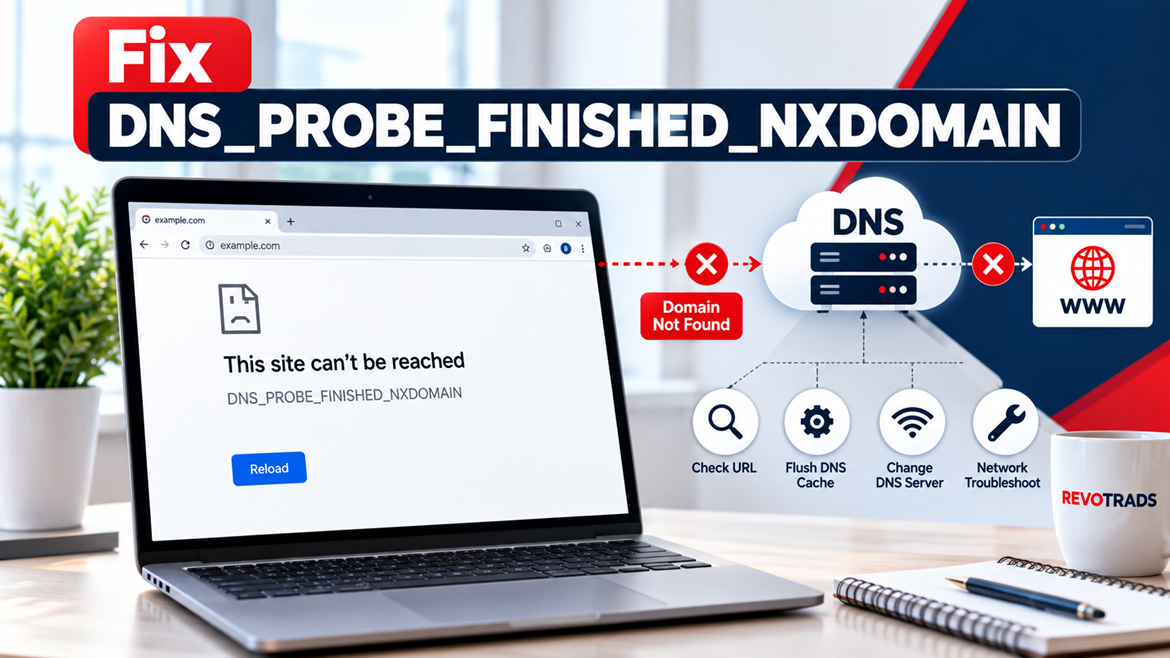
Have you ever opened Google Chrome, entered a website address, and suddenly encountered the message “This site can’t be reached” followed by DNS_PROBE_FINISHED_NXDOMAIN?
This frustrating error can prevent you from accessing websites even when your Wi-Fi connection appears normal. It may affect a single website or multiple domains, depending on the underlying problem.
The good news is that many DNS_PROBE_FINISHED_NXDOMAIN errors can be resolved by checking the website address, refreshing DNS information, changing network settings, or correcting domain configuration issues.
However, the right solution depends on whether the problem originates from your device, internet connection, DNS resolver, or the website itself.
In this guide, you’ll learn what DNS_PROBE_FINISHED_NXDOMAIN means, why it occurs, and 15 practical ways to troubleshoot it on Windows 11, Windows 10, macOS, Android, and Google Chrome.
Key Takeaways
- DNS_PROBE_FINISHED_NXDOMAIN means a DNS lookup returned a response indicating that the requested domain name does not exist.
- Common causes include incorrect website addresses, stale DNS information, DNS resolver problems, and incorrect domain or nameserver configuration.
-
Windows users can clear the local DNS
cache using
ipconfig /flushdns. - Switching to another trusted DNS resolver can help when the current resolver is returning incorrect information.
- If the problem affects a website across different networks, its domain or DNS configuration may need attention.
- Clearing browser history or reinstalling Chrome is usually unnecessary as an initial troubleshooting step.
Quick Answer: How Do You Fix DNS_PROBE_FINISHED_NXDOMAIN?
To fix DNS_PROBE_FINISHED_NXDOMAIN, first verify that the website address is correct. Next, try the website on another device or mobile network to determine whether the problem is local. Restart your browser and router, then clear your device’s DNS cache. If the error continues, test another trusted DNS resolver, such as Google Public DNS or Cloudflare DNS. Website owners should also verify domain registration, nameservers, and DNS records.
What Is DNS_PROBE_FINISHED_NXDOMAIN?
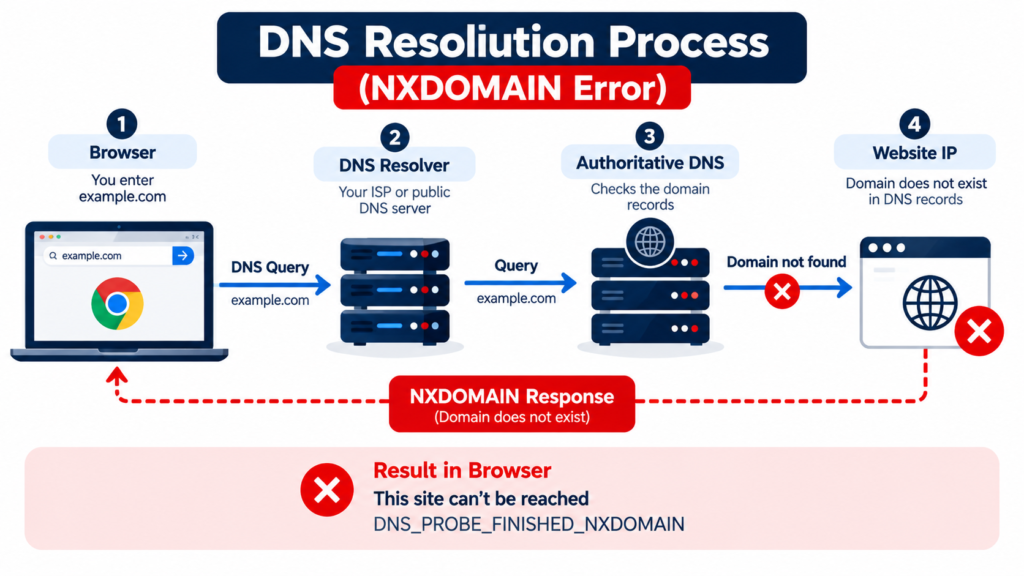
DNS_PROBE_FINISHED_NXDOMAIN is a browser error associated with a failed Domain Name System (DNS) lookup.
The Domain Name System translates human-readable website addresses, such as example.com, into information computers use to locate online services.
When you enter a domain name into Chrome, your browser relies on DNS resolution to locate the website. If the resolver returns an NXDOMAIN response, Chrome may display the DNS_PROBE_FINISHED_NXDOMAIN error.
NXDOMAIN stands for Non-Existent Domain.
This does not necessarily mean the website has permanently disappeared. It means the DNS resolver received a response indicating that the requested domain name does not exist. Incorrect local settings, cached negative responses, resolver problems, or domain configuration errors can produce this result.
For example, suppose you accidentally type examplle.com instead of example.com. If the misspelled domain does not exist, the DNS lookup may return NXDOMAIN.
The same error can appear when a real domain is incorrectly configured or a resolver has outdated information.
Why Does DNS_PROBE_FINISHED_NXDOMAIN Occur?
Several problems can cause this error. Understanding the likely source helps you avoid unnecessary troubleshooting.
1. Incorrect Website Address
A spelling mistake in the domain name is one of the simplest explanations. An extra letter, missing character, or incorrect domain extension may lead to an NXDOMAIN response.
2. Stale DNS Cache
Operating systems and browsers may temporarily cache DNS information. If a cached negative response is no longer correct, your device may continue reporting that the domain does not exist until the entry expires or is cleared.
3. DNS Resolver Problems
Your internet service provider normally assigns DNS resolvers automatically. If the selected resolver returns incorrect or outdated information, a valid website may appear unavailable.
4. Incorrect DNS Settings
Manual DNS configuration, VPN software, security applications, or network policies can influence which DNS resolver your device uses.
5. Router or Local Network Problems
An incorrectly configured router can direct DNS requests to an unsuitable resolver or interfere with normal name resolution.
6. VPN, Proxy, or Security Software
Some VPNs, filtering services, parental-control applications, and corporate networks intentionally block particular domains by returning DNS errors.
7. Incorrect Domain Nameservers
Website owners may experience NXDOMAIN errors when a domain uses incorrect nameservers or when authoritative DNS zones are missing or improperly configured.
8. Expired or Suspended Domain
An expired domain may stop resolving if the registrar changes or removes its DNS delegation.
9. Missing DNS Configuration
A missing DNS zone, incorrectly configured subdomain, or unsuitable DNS records can prevent a hostname from resolving.
Importantly, a missing A record does not always produce NXDOMAIN. A DNS name can exist without having the particular record type requested.
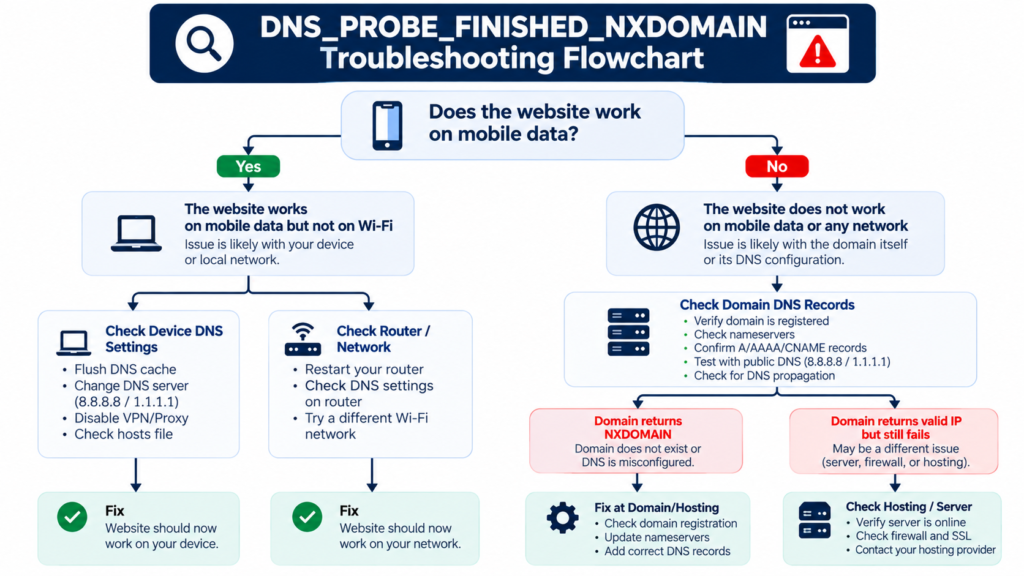
First: Find Out Whether the Problem Is on Your Device or the Website
Before changing advanced network settings, determine how widespread the error is.
Try opening another well-known website. If multiple unrelated websites fail, investigate your connection or DNS configuration.
Next, open the affected website on your smartphone using mobile data instead of Wi-Fi.
If it works on mobile data but fails on your computer, the issue may involve your device, router, or current DNS resolver.
If the website fails across different devices and networks, the domain itself may have a DNS problem. This is a useful clue, although not definitive proof.
You can also compare DNS responses using nslookup or another DNS diagnostic utility.
15 Ways to Fix DNS_PROBE_FINISHED_NXDOMAIN
Method 1: Check the Website URL
Start by examining the website address.
Make sure the domain name is spelled correctly, including its extension. Check for accidental spaces, incorrect characters, and unnecessary subdomains.
For example, example.com and www.example.com are separate DNS names and may have different configurations.
If you followed a link from an email or message, verify that it points to the intended website before entering any sensitive information.
After correcting the address, reload the page.
Method 2: Restart Google Chrome
Temporary browser or network-state problems can sometimes be resolved by restarting Chrome.
Close all Chrome windows, reopen the browser, and try the website again.
If the problem persists, test the website in another browser.
When the same domain fails in multiple browsers, the problem may be outside Chrome itself.
Method 3: Restart Your Router
Restarting your router can refresh its network connections and clear some temporary network-state problems.
Turn off the router using its power control, wait approximately 30 seconds, and turn it on again.
Wait until the connection is restored before testing the website.
Avoid performing a factory reset unless you understand the consequences, because it can remove your Wi-Fi and internet configuration.
If the website still fails, continue with DNS-specific troubleshooting.
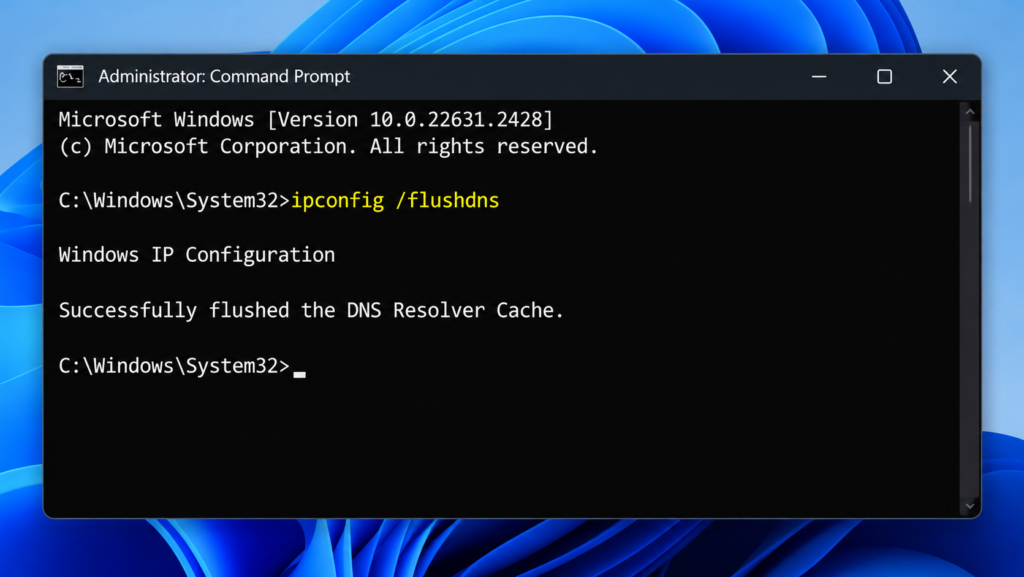
Method 4: Flush DNS Cache on Windows 11 and Windows 10
Windows maintains a local DNS resolver cache to reduce repeated lookups.
If cached information is outdated, clearing the cache can help.
Steps:
- Open the Windows Start menu.
- Search for Command Prompt.
- Select Run as administrator.
- Enter the following command:
ipconfig /flushdns
- Press Enter.
- Wait for the confirmation message.
- Reopen the affected website.
A successful command typically displays a message indicating that the DNS resolver cache was flushed.
Microsoft documents this command as a way to discard cached DNS entries, including negative responses.
If the problem involves the domain’s authoritative DNS configuration, clearing your Windows cache will not repair it.
Method 5: Clear Chrome’s DNS Host Cache
Chrome may maintain its own host-resolution information in addition to operating-system DNS caching.
Depending on your Chrome version, you may be able to access the host cache interface by entering:
chrome://net-internals/#dns
If the page provides a Clear host cache control, use it and retry the website.
Chrome’s internal diagnostic pages can change between releases. If this interface is unavailable, do not assume your browser is damaged.
You can instead restart Chrome and clear the operating system’s DNS cache.
For additional browser troubleshooting, see Revotrads’ guide to Chrome Net Internals DNS history and diagnostic commands.
Method 6: Change Your DNS Server
If your current DNS resolver returns incorrect information, testing a different resolver can help identify the problem.
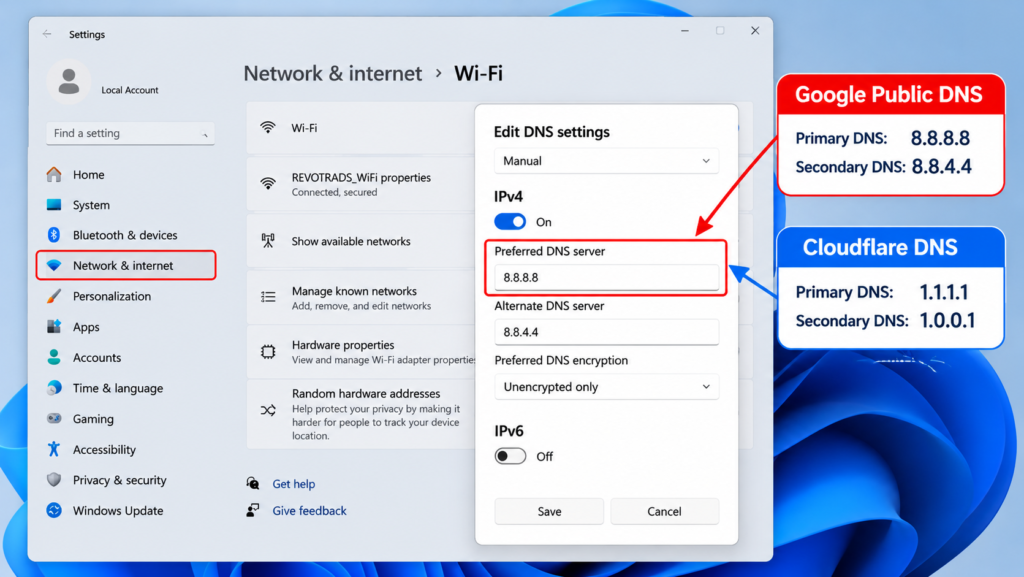
Two commonly used public DNS services are Google Public DNS and Cloudflare DNS.
| DNS provider | Primary IPv4 | Secondary IPv4 |
|---|---|---|
| Google Public DNS | 8.8.8.8 | 8.8.4.4 |
| Cloudflare DNS | 1.1.1.1 | 1.0.0.1 |
How to change DNS on Windows 11:
Open Settings and select Network & internet. Choose your active Wi-Fi or Ethernet connection and locate the DNS server assignment settings.
Select Edit, choose Manual, and configure IPv4 with your preferred resolver addresses.
Save the changes and reconnect if necessary.
Windows settings can differ slightly by version and network configuration.
Changing DNS is a diagnostic step, not a guaranteed solution. Public resolvers may also bypass organization-specific DNS filtering or internal domain resolution. If you’re using a managed office network, consult your administrator first.
Method 7: Reset Network Settings on Windows
If ordinary DNS troubleshooting does not work, you can investigate the Windows network stack.
Open Command Prompt as administrator and run:
netsh winsock reset
Then restart Windows.
If the problem continues and there is evidence of broader TCP/IP configuration damage, Microsoft also documents:
netsh int ip reset
This more extensive reset can affect network configuration, so use it only when appropriate.
Do not run a collection of network-reset commands automatically without understanding which problem you’re trying to solve.
Method 8: Disable VPN or Proxy Temporarily
VPN and proxy services can change how DNS requests are routed or resolved.
If DNS_PROBE_FINISHED_NXDOMAIN started after enabling a VPN, disconnect it temporarily and test the affected website again.
If you use a manual proxy, review its configuration.
On Windows, open Settings, select Network & internet, and then Proxy.
Disable an unnecessary manual proxy configuration and retry the website.
However, do not disable a company-required VPN, proxy, or security policy without permission.
If disabling the service resolves the issue, investigate its DNS settings rather than permanently removing useful security protections.
Method 9: Check Antivirus and DNS Filtering
Security software may block domains considered unsafe, malicious, or restricted.
If a legitimate website is unexpectedly blocked, review your antivirus or DNS-filtering logs.
Look for blocked-domain notifications, custom DNS policies, or recently changed filtering settings.
Where available, use a temporary allowlist for a verified trusted domain rather than disabling protection for your entire device.
If the domain is suspicious or unfamiliar, do not bypass the warning simply to make the page load.
Method 10: Check the Windows Hosts File
The Windows hosts file can override normal DNS resolution for selected hostnames.
Its usual location is:
C:\Windows\System32\drivers\etc\hosts
Open the file with an administrator-approved text editor and review entries relating to the affected website.
Remove only entries that you know are incorrect and that you are authorized to change.
Back up the file before editing it.
A hosts-file mapping can redirect a domain or make it inaccessible, although not every hosts-file problem produces an NXDOMAIN response.
Method 11: Renew Your IP Configuration
If Windows is experiencing broader network connectivity problems, renewing a DHCP-assigned address may help.
Open Command Prompt as administrator and enter:
ipconfig /release
Then enter:
ipconfig /renew
These commands release and request an IPv4 address for applicable DHCP-enabled network adapters.
Important: They can temporarily disconnect your network and may not be appropriate for computers using static IP addresses or remote administrative connections.
Use this method when you have evidence of a local network configuration problem, rather than as a first response to a single-domain NXDOMAIN error.
Method 12: Fix DNS_PROBE_FINISHED_NXDOMAIN on macOS
Mac users can troubleshoot the same underlying DNS issue.
First, confirm that the website address is correct and test it on another network.
Next, open System Settings, choose Network, select the active connection, and review the DNS configuration.
You can temporarily test a trusted public resolver if your network allows it.
For versions of macOS that support the following command, open Terminal and enter:
sudo dscacheutil -flushcache; sudo killall -HUP mDNSResponder
Enter your administrator password if prompted.
DNS cache behavior and command availability may differ between macOS releases.
After clearing the cache, reopen your browser and test the website.
Method 13: Fix DNS_PROBE_FINISHED_NXDOMAIN on Android
Android users may encounter DNS-related website failures in Chrome and other browsers.
Start by turning Wi-Fi off and on again.
Then test the website using mobile data.
If it works on mobile data but not Wi-Fi, investigate your router or network DNS settings.
You can also review Android’s Private DNS configuration.
Open Settings, find Network & internet or Connections, and locate Private DNS. The exact menu depends on your device manufacturer and Android version.
If a custom Private DNS provider was configured recently, verify that its hostname is correct.
For testing, you may temporarily return to Automatic mode, provided this does not violate a managed-device security policy.
Restart Chrome and test the website again.
Avoid resetting the entire phone for a single DNS error.
Method 14: Verify the Domain’s DNS Records
If you own the affected website, investigate the authoritative DNS configuration.
Check that the domain registration is active and the registrar lists the intended nameservers.
Next, verify that the relevant DNS zone exists at the authoritative DNS provider.
Review the domain’s apex and required subdomains.
For example, the main domain and its www hostname may require different DNS records.
Use DNS lookup tools or commands such as:
nslookup example.com
To query a particular resolver:
nslookup example.com 1.1.1.1
Replace example.com with your actual domain.
Compare responses from different resolvers. If one returns NXDOMAIN and another returns valid records, caching or resolver differences may be involved.
If all resolvers consistently report NXDOMAIN, inspect domain delegation, authoritative DNS records, and DNSSEC configuration where applicable.
Changing website hosting alone will not necessarily fix incorrect domain DNS.
Method 15: Contact Your ISP or Hosting Provider
If none of the earlier methods works, the next step depends on who controls the failing component.
If many unrelated websites fail only on your internet connection, contact your ISP and describe the DNS symptoms.
If you own a website and its domain fails across multiple independent networks, contact your domain registrar or DNS provider.
Provide the affected hostname, approximate time of failure, resolver test results, and recent DNS changes.
This information is more useful than simply reporting that Chrome cannot open the website.
DNS_PROBE_FINISHED_NXDOMAIN: Troubleshooting by Symptom
| Symptom | Possible cause | Recommended first action |
|---|---|---|
| One website fails on one device | Local DNS cache or configuration | Check URL and flush DNS |
| Multiple websites fail on one device | DNS or network configuration | Test another network |
| Website works on mobile data but not Wi-Fi | Router or network resolver issue | Check router DNS |
| Website fails on multiple networks | Domain or authoritative DNS issue | Verify DNS records |
| Error starts after VPN connection | VPN DNS or filtering issue | Review VPN settings |
| Newly created subdomain fails | Missing or incorrect DNS configuration | Check authoritative DNS |
| Error persists after DNS changes | Cached negative response or unresolved DNS issue | Compare resolvers and check delegation |
This table helps narrow the investigation, but it cannot replace actual DNS diagnostics.
DNS_PROBE_FINISHED_NXDOMAIN vs Other DNS Errors
Different browser errors can indicate different stages of a connection failure.
| Error | General meaning | Main troubleshooting area |
|---|---|---|
| DNS_PROBE_FINISHED_NXDOMAIN | DNS reports the name does not exist | Domain, resolver, cached DNS |
| DNS_PROBE_FINISHED_NO_INTERNET | Browser detects a network connectivity problem | Internet connection |
| DNS_PROBE_POSSIBLE | Browser suspects a DNS-related resolution problem | DNS and network |
| ERR_CONNECTION_TIMED_OUT | Connection did not complete in time | Server, routing, firewall, network |
| ERR_NAME_NOT_RESOLVED | Hostname could not be resolved | DNS configuration |
These error messages are not interchangeable. A website can have valid DNS records and still fail because of a server or network connection problem.
How to Prevent DNS_PROBE_FINISHED_NXDOMAIN in the Future
There is no universal way to prevent every DNS resolution error, but several practices can reduce avoidable failures.
For everyday internet users, keep the operating system and browser updated, avoid untrusted DNS configuration utilities, and review VPN or proxy changes when connection problems begin.
If your internet connection repeatedly experiences DNS problems, investigate your ISP resolver or consider a reliable alternative that fits your privacy and network requirements.
For website owners, monitor domain expiration dates, nameserver configuration, authoritative DNS availability, and DNS record changes.
Use reliable DNS hosting, keep an accurate record of your DNS configuration, and verify critical records after migrations.
When changing nameservers, ensure that the replacement DNS zone is fully configured before switching delegation.
For business websites, monitoring DNS availability can help identify failures before large numbers of customers report them.
Frequently Asked Questions
1. What does DNS_PROBE_FINISHED_NXDOMAIN mean?
It means the DNS lookup returned NXDOMAIN, indicating that the requested domain name does not exist from the resolver’s perspective. The underlying cause may be a typo, resolver issue, cached response, or domain configuration problem.
2. How do I fix DNS_PROBE_FINISHED_NXDOMAIN in Chrome?
Start by checking the URL and testing the website on another network. Restart Chrome, clear DNS cache, and investigate the configured DNS resolver. If the error affects a domain you own, verify its authoritative DNS settings.
3. Is DNS_PROBE_FINISHED_NXDOMAIN caused by a virus?
Not necessarily. The error commonly relates to DNS resolution. Malware or unwanted software can sometimes alter network settings, but the error alone is not evidence of infection.
4. Can changing DNS to 8.8.8.8 fix the problem?
It can help if the current DNS resolver is returning incorrect or stale information. However, changing resolvers will not repair an expired domain or incorrect authoritative DNS configuration.
5. How do I fix DNS_PROBE_FINISHED_NXDOMAIN on Windows 11?
Verify the website address, test another network, and clear the Windows DNS cache using ipconfig /flushdns. If necessary, review DNS server settings, VPN configuration, and network connectivity.
6. Why does the error appear on only one website?
The domain may be misspelled, incorrectly configured, or cached as nonexistent by your DNS resolver. Compare the domain’s DNS responses from another network or resolver.
7. How long does a DNS_PROBE_FINISHED_NXDOMAIN error last?
The duration depends on the cause. A typo can be corrected immediately. Cached negative DNS responses may persist until their caching period expires. Domain configuration problems remain until the relevant settings are corrected and resolvers receive updated information.
8. Does clearing Chrome history fix DNS_PROBE_FINISHED_NXDOMAIN?
Usually not. Browsing history and DNS resolution are different. Clearing the DNS cache is more directly relevant to cached name-resolution problems.
9. Can DNS_PROBE_FINISHED_NXDOMAIN affect WordPress websites?
Yes. WordPress websites rely on functioning domain DNS just like other websites. If a domain or required hostname cannot be resolved, visitors may see the error before WordPress is contacted.
10. Is DNS_PROBE_FINISHED_NXDOMAIN a hosting server problem?
Not always. NXDOMAIN occurs during DNS resolution, before the browser can establish a normal connection to the hosting server. The problem may involve the domain, DNS provider, local device, or network resolver.
Final Thoughts
DNS_PROBE_FINISHED_NXDOMAIN can look like a serious website failure, but it often becomes easier to troubleshoot once you identify where DNS resolution is going wrong.
Start with simple checks: confirm the URL, test another network, restart the browser, and clear local DNS cache.
If those steps fail, compare DNS resolvers and inspect network settings.
Website owners should pay particular attention to domain registration, nameserver delegation, authoritative DNS configuration, and recent DNS changes.
The most important principle is to diagnose the cause before changing multiple settings. This saves time, avoids unnecessary network resets, and helps you resolve the underlying issue rather than temporarily hiding the symptoms.
Explore more technical troubleshooting guides on Revotrads: Learn about Chrome Net Internals, browser connectivity problems, DNS configuration, and cloud infrastructure through our technology tutorials.
References and technical documentation
- Google Chrome Help — Fix connection and loading errors: https://support.google.com/chrome/answer/6098869
- Microsoft Learn — ipconfig command: https://learn.microsoft.com/en-us/windows-server/administration/windows-commands/ipconfig
- Microsoft Support — Fix Wi-Fi connection issues in Windows: https://support.microsoft.com/en-us/windows/fix-wi-fi-connection-issues-in-windows-9424a1f7-6a3b-65a6-4d78-7f07eee84d2c
- Cloudflare DNS Documentation — Fix DNS_PROBE_FINISHED_NXDOMAIN: https://developers.cloudflare.com/dns/troubleshooting/dns-probe-finished-nxdomain/






One Response
I learned something new from this post.