chrome://net-internals/#dns: How to Clear Chrome DNS Cache & Fix DNS History Delete Not Working
If Google Chrome keeps loading an old version of a website, redirects you to the wrong server, displays DNS_PROBE_FINISHED_NXDOMAIN, or continues using an old IP address after a DNS change, Chrome’s DNS or host resolver cache may be involved.
One of the most useful troubleshooting tools for this problem is:
chrome://net-internals/#dns
Chrome’s Net Internals DNS page provides access to the browser’s host resolver cache and includes the Clear host cache option.
However, clicking Clear host cache does not always appear to solve the problem. This leads many users to search for solutions to issues such as Chrome Net Internals DNS history delete not working, Chrome DNS cache not clearing, or chrome://net-internals/#dns not working.
The reason is simple: DNS information can exist at several different layers. Chrome is only one of them.
This guide explains what chrome://net-internals/#dns does, how to clear Chrome’s DNS cache correctly, why DNS information may appear to remain after clearing it, and how to troubleshoot DNS problems on Windows, macOS, Linux, Android, routers, and other network layers.
Quick Answer: How Do I Clear Chrome DNS Cache?
To clear Chrome’s internal host cache:
- Open Google Chrome.
- Enter
chrome://net-internals/#dnsin the address bar. - Press Enter.
- Find the Host resolver cache section.
- Click Clear host cache.
- Open
chrome://net-internals/#sockets. - Click Flush socket pools if the problem continues.
- Close and reopen Chrome.
- Reload the affected website.
If the website still resolves to an incorrect or old IP address, the problem may be outside Chrome. You may need to flush your operating system DNS cache, restart the network connection, check Secure DNS settings, verify your DNS records, or wait for DNS caches elsewhere to expire.
What Is chrome://net-internals/#dns?
chrome://net-internals/#dns is an internal Chrome diagnostic page related to hostname resolution.
DNS stands for Domain Name System. Its basic job is to translate human-readable domain names such as:
example.com
into IP addresses that computers can use to locate servers.
Without DNS, users would have to remember IP addresses instead of website names.
Chrome can retain hostname-resolution information so that it does not have to perform every lookup from scratch. This can improve efficiency, but cached information can sometimes become stale.
For example, suppose a website is migrated from one server to another and its DNS record changes. Your browser or another resolver may temporarily continue using previously cached information.
That is when clearing the appropriate DNS cache becomes useful.
Is Chrome Net Internals DNS History the Same as Browsing History?
No.
This is one of the biggest sources of confusion surrounding this topic.
Chrome browsing history records pages that you have visited. Browser cache stores website resources such as images, scripts, CSS files, and other content.
DNS or host resolver cache is different. It relates to hostname resolution.
Therefore, clearing Chrome browsing history does not mean that you have necessarily reset every DNS-related cache involved in a connection.
| Data | What It Contains | Typical Clearing Method |
|---|---|---|
| Browsing history | Previously visited URLs | Chrome privacy settings |
| Browser cache | Images, CSS, JavaScript and site resources | Clear browsing data |
| Cookies | Website/session information | Clear browsing data |
| Chrome host cache | Hostname-resolution information | chrome://net-internals/#dns |
| Socket pools | Existing network connections | chrome://net-internals/#sockets |
| OS DNS cache | DNS information cached by the operating system | OS-specific DNS flush |
| Router/network DNS | Cached or configured DNS information outside the device | Router/network troubleshooting |
This distinction explains why deleting browser history may have little effect on a DNS resolution problem.
What Does “Clear Host Cache” Actually Do?
When you visit:
chrome://net-internals/#dns
Chrome provides a Clear host cache control.
Its purpose is to clear Chrome’s host resolver cache.
This is useful when Chrome appears to be using stale hostname information, particularly after:
- changing a website’s DNS records;
- moving a domain to a new server;
- modifying a local hosts file;
- encountering a failed DNS lookup;
- changing DNS providers;
- troubleshooting
ERR_NAME_NOT_RESOLVED; - troubleshooting
DNS_PROBE_FINISHED_NXDOMAIN; - testing a website migration.
However, this operation should not be interpreted as a universal DNS reset.
Your operating system, router, VPN, DNS resolver, ISP, or other network component may independently influence DNS resolution.
Why Is Chrome Net Internals DNS History Delete Not Working?
If you click Clear host cache but the website still behaves exactly the same way, it does not necessarily mean the Chrome button failed.
Several other causes are possible.
1. Your Operating System Still Has Cached DNS Information
Chrome is not the only component capable of using cached DNS information.
Windows, macOS and Linux systems have their own resolver mechanisms.
Therefore, clearing Chrome’s host cache may leave the operating system’s DNS state unchanged.
If Chrome immediately obtains the same stale result from another resolver layer, it can appear as though Chrome never cleared anything.
2. Existing Socket Connections Are Still Open
Chrome may have active connections associated with the website.
For this reason, clearing the host cache is often followed during troubleshooting by opening:
chrome://net-internals/#sockets
and selecting:
Flush socket pools
You should then restart Chrome and test the website again.
3. The DNS Record Has Not Changed Where You Think It Has
If you own the website, do not assume that a browser cache is responsible simply because you recently changed DNS.
Check the authoritative DNS configuration.
A typo in an A, AAAA, CNAME or nameserver record cannot be fixed by clearing Chrome’s cache.
For example, if the authoritative DNS server is still returning the old IP address, clearing local caches will simply cause the resolver to retrieve the old address again.
4. DNS TTL Has Not Expired at Another Resolver
DNS records can specify a Time to Live (TTL).
Resolvers may cache a DNS response according to the applicable caching rules. Consequently, changing a record at your DNS provider does not guarantee that every resolver everywhere will immediately return the new value.
This is one reason a website can work correctly on one network but still resolve differently on another.
5. Your Router or Network Is Involved
Your router or network configuration may also influence which DNS resolver is being used.
A useful diagnostic test is to compare the affected website on:
- your normal Wi-Fi connection;
- a mobile data connection;
- another Wi-Fi network.
If the website works on mobile data but not your normal Wi-Fi, that is an important clue that the problem may be network-specific rather than Chrome-specific.
6. Secure DNS Is Being Used
Modern browsers can use encrypted DNS technologies such as DNS-over-HTTPS under certain configurations.
Chrome’s Secure DNS configuration can therefore be relevant when diagnosing unusual DNS behavior.
If clearing the host cache does not help, review Chrome’s Secure DNS configuration under its privacy and security settings.
Avoid randomly disabling security features permanently. Instead, use configuration changes as controlled troubleshooting steps and restore your preferred security settings afterward.
7. A VPN, Proxy or Security Product Is Handling DNS
VPN software, corporate networks, endpoint security products, filtering tools, and proxies can change how DNS requests are resolved.
If the issue started after enabling a VPN or network-security product, temporarily testing without that layer can help identify the source.
For managed business devices, consult the network administrator before modifying security or DNS policies.
8. The Problem Is Not DNS
A website failing to load does not automatically indicate a DNS problem.
The actual cause could be:
- web server downtime;
- incorrect SSL/TLS configuration;
- firewall rules;
- redirect loops;
- CDN configuration;
- proxy configuration;
- browser extension conflicts;
- HTTP errors;
- hosting problems.
DNS troubleshooting should therefore be part of a structured diagnosis rather than the automatic answer to every Chrome connection error.
How to Clear Chrome DNS Cache Correctly
The following sequence provides a practical troubleshooting process.
Step 1: Open Chrome Net Internals DNS
Open a new Chrome tab and enter:
chrome://net-internals/#dns
Press Enter.
Locate Host resolver cache and select:
Clear host cache
Chrome may not display a dramatic confirmation message after you click the button.
That does not by itself indicate that the operation failed.
Step 2: Flush Chrome Socket Pools
Next, open:
chrome://net-internals/#sockets
Select:
Flush socket pools
Existing connections can sometimes complicate DNS troubleshooting, so clearing the host cache and resetting relevant connection pools provides a cleaner test.
Step 3: Restart Chrome
Close Chrome and reopen it.
Then visit the affected website again.
If the website now works or resolves to the expected destination, the issue was likely associated with browser-level cached state or an existing connection.
If nothing changes, continue troubleshooting outside Chrome.
How to Flush DNS Cache on Windows
On Windows, Chrome’s host cache and the Windows DNS resolver cache should be treated as separate layers.
Open Command Prompt with appropriate permissions and run:
ipconfig /flushdns
After the command completes, restart Chrome and test the website.
You can also inspect DNS resolution independently of Chrome with tools such as:
nslookup example.com
Replace example.com with the affected domain.
If nslookup returns an unexpected address, the problem is unlikely to be limited to Chrome.
How to Clear DNS Cache on macOS
DNS cache behavior and the appropriate commands can vary by macOS version.
A commonly used troubleshooting sequence on supported versions involves the system’s DNS cache and mDNSResponder service.
Because operating-system commands can change between releases, verify the correct command for your macOS version before using administrative commands.
After flushing the appropriate resolver cache, reopen Chrome and test the domain again.
How to Flush DNS Cache on Linux
Linux is more complicated because DNS resolution depends on the distribution and services installed.
Systems using systemd-resolved, for example, can use:
sudo resolvectl flush-caches
Some older configurations may use different commands or services.
Before running commands copied from a tutorial, identify the resolver service actually running on your Linux distribution.
This is more reliable than assuming one command works across Ubuntu, Debian, Fedora, Arch Linux and every other distribution.
How to Clear Chrome DNS Cache on Android
Chrome users on Android can also encounter cached DNS or hostname-resolution problems.
A useful first test is:
- Open Chrome on Android.
- Enter
chrome://net-internals/#dns. - Tap Clear host cache if the page and option are available.
- Restart Chrome.
- Test the website again.
If the issue remains, reconnecting Wi-Fi, restarting the device, checking Android Private DNS settings, or comparing the website on mobile data can help isolate the problem.
Be careful not to confuse clearing Chrome’s app cache with clearing DNS-related resolver information. They solve different problems.
Chrome DNS Cache vs Operating System DNS Cache
Understanding the layers makes troubleshooting much easier.
| Layer | Example | What Clearing It Helps With |
|---|---|---|
| Chrome | Host resolver cache | Browser-level stale hostname information |
| Chrome connections | Socket pools | Existing network connections |
| Operating system | Windows/macOS/Linux resolver | Device-level cached DNS |
| Router/network | Home/office network | Network-specific resolution issues |
| DNS resolver | ISP/public DNS | Upstream cached DNS results |
| Authoritative DNS | Domain DNS provider | Actual DNS configuration |
The key lesson is that clearing one layer does not automatically clear every other layer.
Why Does Chrome Still Show the Old Website After DNS Changes?
This is common during website migrations.
Suppose your domain originally pointed to:
192.0.2.10
and you changed its DNS record to:
192.0.2.20
If Chrome continues opening the old server, possible explanations include:
- cached hostname information;
- OS resolver cache;
- recursive DNS resolver caching;
- incorrect DNS record;
- old nameserver configuration;
- CDN or reverse proxy configuration;
- hosts-file entry;
- an existing connection;
- local or corporate network DNS policies.
Do not repeatedly click Clear host cache without determining which layer is returning the old address.
Use tools such as nslookup or dig to inspect DNS resolution separately from the browser.
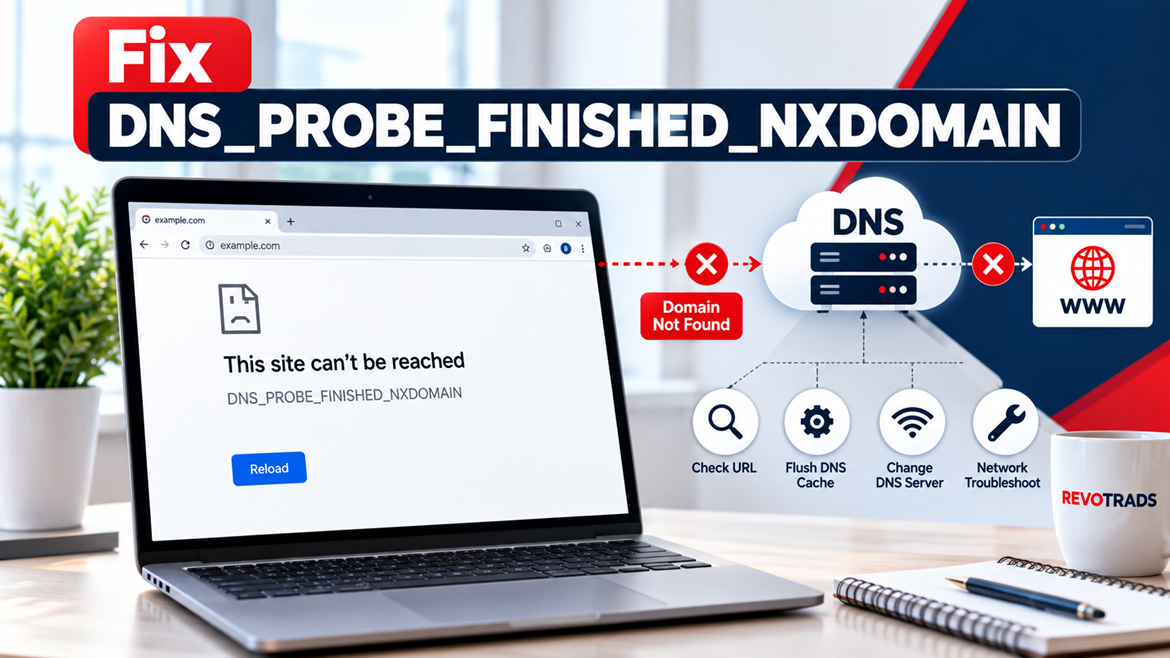
What Is DNS_PROBE_FINISHED_NXDOMAIN?
DNS_PROBE_FINISHED_NXDOMAIN generally indicates that DNS resolution failed to obtain the expected domain result.
NXDOMAIN means that the queried domain name was reported as nonexistent by the DNS resolution process.
Possible causes include:
- misspelled domain;
- missing DNS records;
- incorrect nameservers;
- stale negative DNS cache;
- DNS resolver problems;
- network configuration problems;
- domain expiration or configuration problems.
Clearing Chrome’s host cache can help when a stale cached failure is involved, but it cannot create a missing DNS record.
If you own the website, verify the domain’s authoritative DNS configuration.
How to Fix ERR_NAME_NOT_RESOLVED in Chrome
ERR_NAME_NOT_RESOLVED indicates a hostname-resolution problem.
Try the troubleshooting process in this order:
- Confirm the domain name is typed correctly.
- Test another website.
- Test the domain in another browser.
- Open
chrome://net-internals/#dns. - Click Clear host cache.
- Open
chrome://net-internals/#sockets. - Flush socket pools.
- Restart Chrome.
- Flush the operating system’s DNS cache.
- Test another network.
- Check VPN, proxy or Secure DNS configuration.
- Verify the domain’s DNS records if you control the website.
This sequence helps identify the responsible layer instead of applying unrelated fixes.
Should You Change Your DNS Server?
Changing DNS resolvers can be useful as a diagnostic step if your existing resolver is failing or returning unexpected results.
Common public DNS services include Google Public DNS and Cloudflare’s 1.1.1.1.
Google Public DNS provides IPv4 resolver addresses:
8.8.8.8
8.8.4.4
Cloudflare’s standard IPv4 resolver addresses include:
1.1.1.1
1.0.0.1
Before changing DNS configuration, record your existing settings so that you can restore them.
Changing your DNS server should not be treated as a guaranteed solution to every browser error. If the authoritative DNS configuration is wrong, switching resolvers will not repair the underlying record.
Chrome Net Internals DNS Not Working: Diagnostic Checklist
When chrome://net-internals/#dns does not solve your problem, use this checklist.
| Check | What to Do | What It Helps Identify |
|---|---|---|
| Chrome host cache | Clear host cache | Browser resolver cache |
| Chrome sockets | Flush socket pools | Existing connections |
| Restart Chrome | Fully reopen browser | Browser session state |
| OS DNS | Flush resolver cache | Device-level caching |
| Another browser | Test same domain | Chrome-specific issue |
| Incognito | Test without normal session | Extension/session issue |
| Another network | Try mobile data/Wi-Fi | Network-level issue |
| DNS lookup | Use nslookup/dig | Resolver/DNS record issue |
| VPN/proxy | Temporarily compare without it | DNS interception/routing |
| DNS records | Verify A/AAAA/CNAME/NS | Authoritative DNS problem |
| Server | Check hosting availability | Non-DNS infrastructure issue |
This method is more effective than repeatedly clearing browser history.
Does Incognito Mode Clear DNS Cache?
Incognito mode is useful as a diagnostic tool, but it should not be treated as a complete DNS reset.
Its primary purpose is to separate browsing-session data such as local history and cookies from your normal profile.
If a website works in Incognito but fails in your normal Chrome profile, investigate extensions, cookies, cached site resources, or profile-specific configuration.
That difference can provide an important clue, but it does not automatically prove that DNS was responsible.
Does Restarting Chrome Clear DNS Cache?
Restarting Chrome can help reset browser state and connections, but when specifically troubleshooting hostname resolution, using Clear host cache gives you a more explicit browser-level troubleshooting step.
A useful sequence is:
Clear host cache → Flush socket pools → Restart Chrome → Retest
If the problem continues, move to the operating-system and network layers.
Does Clearing DNS Cache Delete Passwords or Browsing History?
No. Clearing Chrome’s host resolver cache is not the same as deleting your browsing history, passwords, bookmarks or saved form information.
The host cache relates to hostname resolution.
This makes it very different from Chrome’s Delete browsing data feature.
Can Clearing DNS Cache Make the Internet Faster?
Sometimes it can resolve a problem caused by stale or incorrect cached information, but DNS flushing should not be promoted as a general internet speed optimization technique.
Caching exists partly to avoid unnecessary repeated lookups.
If your internet connection is consistently slow, investigate latency, Wi-Fi quality, bandwidth, packet loss, DNS resolver performance, browser extensions, server performance and ISP/network conditions rather than repeatedly flushing DNS caches.
Chrome DNS Cache and Website Owners
DNS cache problems are particularly common during:
- website migrations;
- server IP changes;
- CDN migrations;
- DNS-provider migrations;
- nameserver changes;
- hosting migrations;
- staging-to-production launches.
Website administrators should verify DNS independently instead of relying on what one browser displays.
For example:
nslookup yourdomain.com
or on systems with dig:
dig yourdomain.com
You can also query specific record types.
Examples include:
dig yourdomain.com A
dig yourdomain.com AAAA
dig yourdomain.com NS
dig www.yourdomain.com CNAME
These checks can help determine whether the problem is local or originates from the domain’s DNS configuration.
DNS Problems and SEO: What Website Owners Should Know
DNS reliability is not merely a browser troubleshooting issue.
It can become an SEO issue when a site’s DNS configuration prevents search-engine crawlers from reaching the server.
If Googlebot encounters DNS or network errors, Google may slow crawling because it cannot reliably access the host. Persistent accessibility problems can interfere with crawling and indexing.
That means website owners should pay attention to:
- reliable authoritative DNS;
- correct A, AAAA and CNAME records;
- correct nameserver configuration;
- server availability;
- CDN configuration;
- firewall rules;
- DNS monitoring;
- migration planning;
- Search Console host availability and crawl reports.
Importantly, your personal Chrome DNS cache does not directly control Google’s index.
Clearing chrome://net-internals/#dns fixes a local browser-level issue. It does not instruct Googlebot to recrawl a website and does not flush Google’s crawler infrastructure.
This distinction is especially important for SEO professionals troubleshooting a recent migration.
Common Mistakes When Troubleshooting Chrome DNS
One of the biggest mistakes is assuming that every loading error is a DNS problem.
Another is repeatedly clearing browser data even though the actual issue is an incorrect DNS record.
Website owners also sometimes mistake DNS propagation for a Chrome cache problem. If the new DNS record has not become visible through the resolver being used, repeatedly clearing Chrome will not accelerate the authoritative DNS change.
Another common mistake is changing several variables simultaneously.
For example, if you clear Chrome’s host cache, change DNS providers, disable a VPN, restart the router and edit the hosts file at the same time, you may solve the issue but never learn what caused it.
For technical troubleshooting, change one meaningful layer at a time and retest.
A Better DNS Troubleshooting Workflow
A systematic approach saves time.
Browser level: Clear Chrome’s host cache and flush socket pools.
Device level: Flush or restart the operating system’s DNS resolver where appropriate.
Network level: Compare Wi-Fi with another network and inspect router or VPN behavior.
Resolver level: Compare DNS answers from your configured resolver and another trusted resolver.
Authoritative level: Verify A, AAAA, CNAME, NS and other relevant records at the DNS provider.
Server level: Confirm the IP address returned by DNS actually hosts the expected website and that the server, firewall, SSL/TLS and CDN configuration are working.
Following this order helps prevent a simple Chrome cache problem from turning into hours of unnecessary server troubleshooting.
Frequently Asked Questions
What is chrome://net-internals/#dns?
chrome://net-internals/#dns is a Chrome internal page associated with hostname-resolution diagnostics. It includes the Clear host cache control used to clear Chrome’s host resolver cache.
How do I clear DNS cache in Chrome?
Open chrome://net-internals/#dns and click Clear host cache. If the issue continues, open chrome://net-internals/#sockets, flush socket pools, restart Chrome and test again.
Why is Chrome Net Internals DNS history delete not working?
The browser cache may have cleared correctly while another layer—such as the operating system, router, DNS resolver, VPN, or authoritative DNS configuration—continues returning the same result.
Does chrome://net-internals/#dns delete browsing history?
No. Chrome’s host resolver cache and browsing history are different types of data.
What is the Chrome Clear Host Cache button?
It clears Chrome’s host resolver cache, which contains information used during hostname resolution.
Why does Chrome still open my old server after clearing DNS?
The old address may be coming from the OS resolver, upstream DNS cache, VPN, router, hosts file, incorrect authoritative DNS record, CDN configuration or another networking layer.
Should I flush socket pools after clearing Chrome DNS?
It can be useful when troubleshooting stale connections. Open chrome://net-internals/#sockets and select Flush socket pools, then restart Chrome.
Does clearing Chrome DNS cache change my DNS server?
No. Clearing cached host information does not change your configured DNS provider.
Can I use chrome://net-internals/#dns on Android?
Chrome on Android may expose the internal DNS page and Clear host cache option. If it is available on your current Chrome version, it can be used as a browser-level troubleshooting step.
What is the difference between DNS cache and browser cache?
DNS cache relates to hostname resolution, while browser cache generally stores website resources such as images, scripts and stylesheets.
Will clearing DNS cache fix DNS_PROBE_FINISHED_NXDOMAIN?
It can help if a stale cached DNS result is responsible. It will not fix missing DNS records, incorrect nameservers, an expired domain or an authoritative DNS configuration error.
Is it safe to clear Chrome’s host cache?
Generally, yes. The browser can perform new hostname resolutions as required after cached information is cleared.
How often should I clear Chrome DNS cache?
There is normally no reason to clear it routinely. Use DNS flushing when troubleshooting a specific hostname-resolution issue, after relevant DNS changes, or during website migration testing.
Final Thoughts
chrome://net-internals/#dns remains a useful first step when Chrome appears to be using stale hostname-resolution information.
The important point is understanding what Clear host cache actually clears.
Chrome’s host resolver cache is only one layer in the DNS resolution path. Your operating system, network, router, VPN, recursive DNS resolver and authoritative DNS configuration can all affect the final result.
Therefore, if Chrome Net Internals DNS history appears not to delete or clearing the host cache does not fix the problem, use a layered troubleshooting process:
Clear Chrome host cache → Flush socket pools → Restart Chrome → Check OS DNS → Test another network → Verify resolver results → Check authoritative DNS → Check the web server.
This approach is safer and much more effective than repeatedly deleting browser data or randomly changing network settings.
For website owners, developers and SEO professionals, understanding these layers is especially valuable during hosting migrations and DNS changes. A browser problem can look like a server problem, while a genuine DNS configuration error can easily be mistaken for browser caching.
Knowing which layer you are actually troubleshooting is the key to fixing the issue quickly.