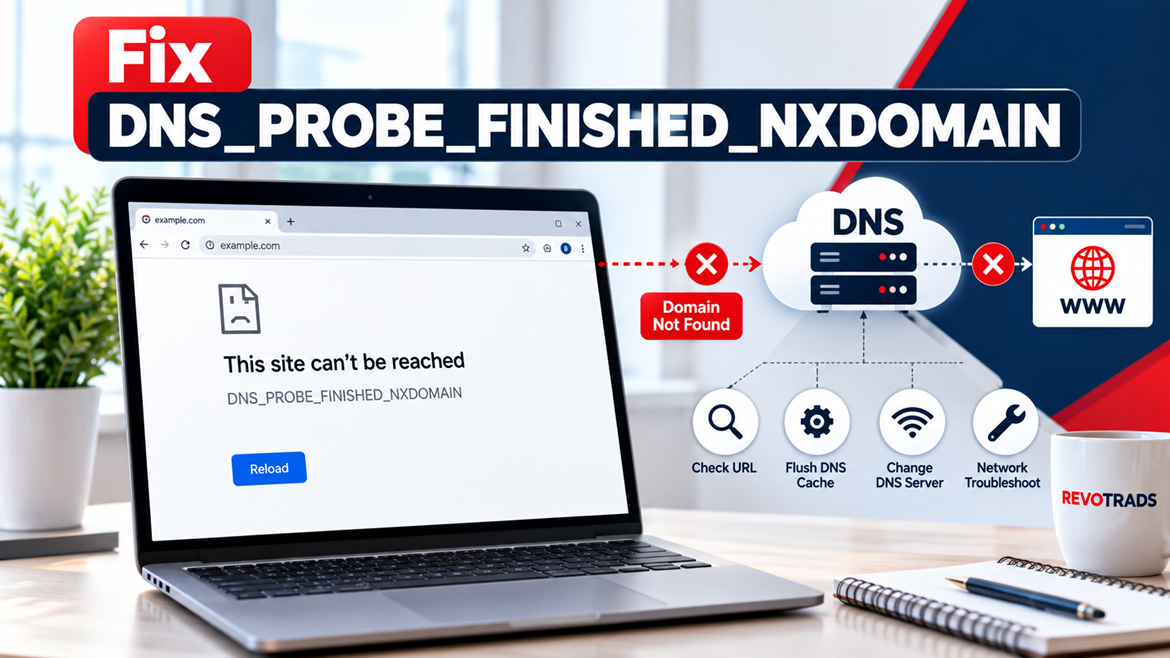
Nothing can be more frustrating than encountering a “Server IP couldn’t be found” error when you are simply trying to access a website or your web server. Fortunately, resolving this issue can be straightforward with the right guidance. In this thorough guide, we’ll walk you through the steps to fix this common problem, so you can get back online without a hitch.
Understanding the Issue
Before diving into the solutions, let’s first understand what the “Server IP couldn’t be found” error means. This error typically occurs when your browser can’t find the server’s IP address for the website you’re trying to visit. This could be due to a variety of reasons including DNS configuration issues, faulty network settings, or server-sided problems.
Common Causes
- DNS Configuration Problems: Your Domain Name System (DNS) may be misconfigured, which means your computer can’t find the IP address for the domain you want to reach.
- Network Issues: Sometimes, the problem can originate from your local network, such as a misconfigured router.
- Server-Side Issues: The problem might lie with the server that hosts the website or service you are trying to reach.
How to Fix “Server IP Couldn’t Be Found” Error
Now that we understand the potential causes of this issue, let’s explore various steps to fix it.
1. Check Your Internet Connection
The first step is to ensure that your internet connection is stable and functioning:
- Make sure your device is connected to the network.
- Try accessing other websites. If they load, the issue is not with your connection.
- Restart your router or modem to reset the connection.
2. Clear Your Browser Cache
Sometimes, clearing your browser cache can resolve this error:
- Open your browser settings and look for History or Privacy settings.
- Select “Clear browsing data” or a similar option.
- Be sure to clear cached images and files.
- Restart your browser and try accessing the website again.
3. Flush DNS Cache
Clearing your DNS cache can refresh outdated or incorrect DNS information:
- For Windows: Open Command Prompt and type
ipconfig /flushdns, then press Enter. - For macOS: Open Terminal and enter
sudo killall -HUP mDNSResponder. - Try accessing the website again to see if the problem is resolved.
4. Change DNS Server
Switching to a different DNS server can solve the issue if the current server is facing problems:
- Open your network settings and look for DNS configuration options.
- Enter a reputable public DNS server, such as Google (8.8.8.8, 8.8.4.4) or Cloudflare (1.1.1.1).
- Save the changes and restart your browser.
5. Disable VPN and Proxy
If you are using a VPN or proxy, try disabling it as they can sometimes interfere with your connection:
- Open your VPN or proxy application and disconnect or turn it off.
- Clear your browser cache again and try accessing the website.
6. Check for Server-Side Issues
If the website is still inaccessible, the issue might be on the server end:
- Use online services like IsItDownRightNow to check if the website is down for everyone or just you.
- Contact the website administrator to report the problem if you suspect it is a server issue.
7. Reboot Your Computer
Sometimes, a simple reboot can solve networking issues caused by temporary glitches:
- Save all your work and restart your computer.
- After restarting, try accessing the website again.
Additional Tips and Considerations
Even though the above steps should fix the “Server IP couldn’t be found” error in most cases, here are additional tips that might help:
Update Your Network Drivers
- Outdated network drivers can cause connectivity issues. Check for updates through your device manager.
- Right-click on the network adapter and click on “Update Driver”.
Check Firewall and Security Software
- Temporarily disable any firewall or antivirus software that might be blocking DNS requests.
- If the website becomes accessible, adjust the settings or whitelist the addresses needed.
Contact Your ISP
- If none of the above solutions work, the problem might be with your internet service provider.
- Contact them to determine if there are any outages or issues that could be affecting your connection.
Wrapping Up
Dealing with a “Server IP couldn’t be found” error can be inconvenient, but with these troubleshooting steps, you should be able to identify and fix the problem much more effectively. Ensure you start with basic checks before moving on to more advanced solutions, and if necessary, do not hesitate to seek help from your network administrator or internet service provider.
We hope this guide helps you resolve the issue and gets you back to browsing with ease. If you found this information useful, consider sharing it with others who might be facing the same problem!