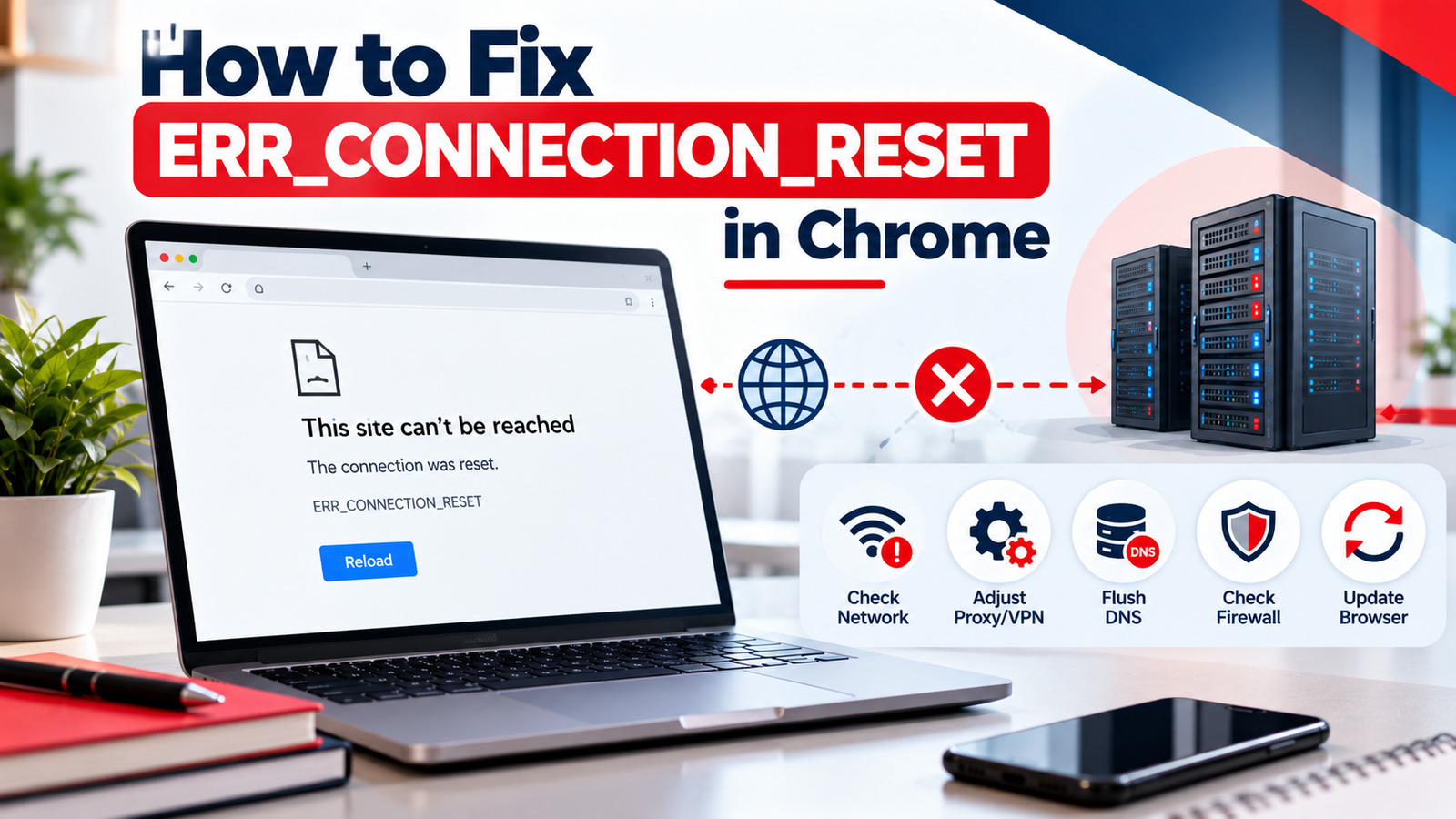
You’re browsing a website in Google Chrome when the page suddenly stops loading. Instead of the content you expected, Chrome displays “This site can’t be reached”, followed by the error code ERR_CONNECTION_RESET.
This problem can appear while opening a website, signing in to an online account, downloading a file, or accessing a web application. Sometimes refreshing the page works. Other times, the error keeps returning even though your internet connection appears normal.
The good news is that many connection reset errors can be resolved without reinstalling Chrome or making complicated system changes.
The important part is identifying whether the interruption originates from your browser, device, Wi-Fi network, VPN, security software, or the website itself.
In this guide, you’ll learn what ERR_CONNECTION_RESET means, why it happens, and how to troubleshoot it on Chrome, Windows 11, Windows 10, macOS, and Android.
Key Takeaways
- ERR_CONNECTION_RESET means Chrome’s connection to a website was unexpectedly interrupted or reset.
- Common causes include unstable internet connectivity, VPN or proxy problems, security software, router issues, and server-side connection resets.
- If a website works on mobile data but fails on Wi-Fi, investigate the local network or router.
- Windows users can try
netsh winsock resetwhen there is evidence of a broader networking problem. - Clearing DNS cache or changing DNS servers may help in certain cases, but they are not direct fixes for every connection reset.
- If the error affects only one website across several networks, the website owner may need to investigate its server, firewall, or network infrastructure.
- Avoid disabling antivirus protection or resetting network settings unnecessarily.
Quick Answer: How Do I Fix ERR_CONNECTION_RESET in Chrome?
To fix ERR_CONNECTION_RESET in Chrome, first reload the website and check whether other websites work. Restart Chrome, test the affected page in another browser, and switch between Wi-Fi and mobile data. If the error continues, restart your router, check VPN or proxy settings, update Chrome, and review security software. On Windows, a Winsock reset may help with persistent network problems. If only one website fails across multiple devices and networks, contact the website owner.
What Is ERR_CONNECTION_RESET?
ERR_CONNECTION_RESET is a network-related error that appears when Chrome cannot complete communication with a website because the connection is unexpectedly reset.
When you open a website, your browser communicates with the destination server through several network components. These can include your operating system, router, internet service provider, security software, and intermediate network infrastructure.
If a connection is forcibly terminated or reset during this process, Chrome may display ERR_CONNECTION_RESET.
At the TCP networking level, a reset can be associated with a TCP RST packet, although the browser error alone does not prove which device sent it or establish the exact cause.
A reset may originate from the destination server, a firewall, a network device, or software on your own computer.
This is why changing browser settings does not always solve the problem.
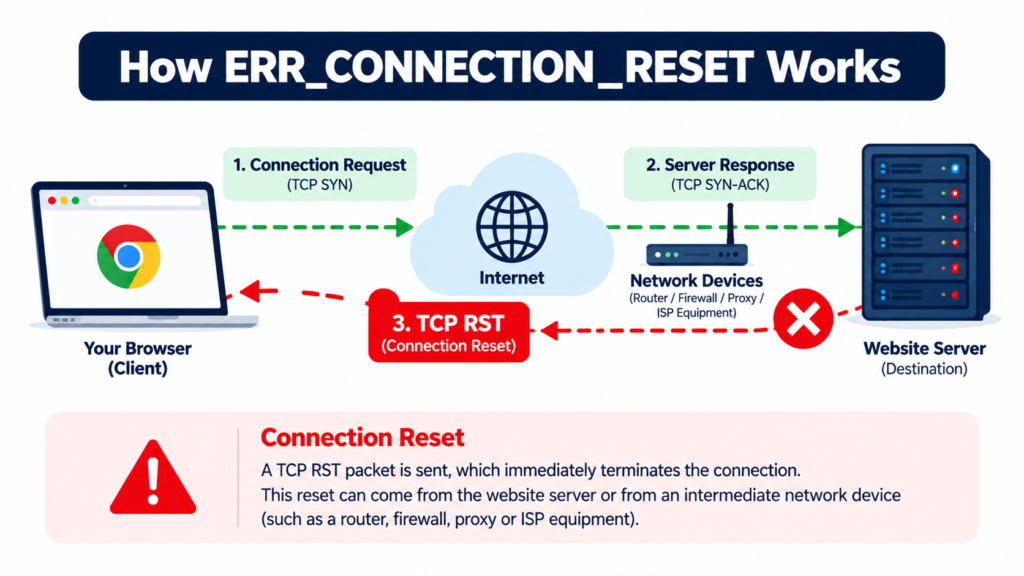
What Does “The Connection Was Reset” Mean?
The message indicates that the connection ended unexpectedly before Chrome could finish loading the requested resource.
For example, suppose you are accessing an online learning portal. The page begins loading, but your VPN or network security gateway interrupts the connection. Chrome may then display ERR_CONNECTION_RESET.
The same message can occur when the website’s server or network configuration rejects or resets certain connections.
Therefore, the error does not automatically mean your internet connection is completely disconnected.
Why Does ERR_CONNECTION_RESET Happen?
Several different problems can interrupt a browser connection.
Unstable Internet Connection
Weak Wi-Fi signals, packet loss, intermittent router problems, or network interruptions can interfere with communication between Chrome and a website.
VPN or Proxy Configuration
VPNs and proxies route traffic through additional network infrastructure. Incorrect settings, blocked destinations, or connection problems within these services may lead to resets.
Antivirus or Firewall Interference
Some security products inspect or filter HTTPS connections. Incorrect rules or compatibility problems can interfere with browser traffic.
Outdated Browser or Extensions
Browser updates may resolve compatibility problems. Extensions that modify requests, filter traffic, or interact with proxy settings can also contribute to connection issues.
Router or ISP Problems
Routers and internet service providers can experience routing, connection tracking, or network stability problems.
Website Server or Firewall Issues
A web server, reverse proxy, load balancer, CDN, or firewall may terminate a connection because of configuration errors, resource constraints, security rules, or network failures.
Operating System Network Configuration
Corrupted or incorrectly configured networking components can affect how applications establish connections.
DNS-Related Problems
DNS settings can sometimes contribute indirectly to connectivity problems, especially if a hostname resolves to an incorrect destination.
However, ERR_CONNECTION_RESET is not primarily a DNS lookup failure.
Before Troubleshooting: Find Out Where the Problem Is
The quickest way to avoid unnecessary changes is to identify whether the issue affects one website, one browser, one device, or an entire network.
Try opening two or three unrelated websites in Chrome.
If all websites fail, investigate the device or network connection first.
If only one website fails, try opening it in another browser.
Next, test the same website on your smartphone using mobile data rather than Wi-Fi.
If the website works over mobile data but fails over Wi-Fi, the local network or its upstream connection becomes a likely area to investigate.
If the website fails on multiple independent networks, the website itself may be experiencing problems.
These tests do not identify the exact cause, but they help narrow the possibilities.
12 Ways to Fix ERR_CONNECTION_RESET in Google Chrome
Method 1: Reload the Website and Restart Chrome
Start with the simplest solution.
Click Chrome’s Reload button or press Ctrl + R on Windows. On macOS, use Command + R.
If the page still fails, close Chrome completely and reopen it.
You can also test the page in an Incognito window. This may help identify extension-related issues because many extensions are not enabled in Incognito by default.
However, Incognito mode does not bypass network problems, VPN routing, or all browser settings.
If the website works in Incognito but fails in a normal window, investigate extensions, cookies, and site-specific browser data.
Method 2: Check Your Internet Connection
An unstable internet connection is a common reason for interrupted website loading.
Open another website and check whether it loads normally.
If you use Wi-Fi, move closer to the router or temporarily test an Ethernet connection.
You can also disconnect from Wi-Fi and reconnect.
If possible, try the same website using mobile data or another trusted network.
If multiple devices experience the same problem on one network, investigate the router or internet service provider.
Avoid relying only on an internet speed test. A connection can report good download speed while still experiencing packet loss or intermittent failures.
Method 3: Restart Your Router and Modem
Routers maintain network connections and routing information. Temporary problems can sometimes be resolved by restarting them.
Turn off the router and modem, if separate.
Wait approximately 30 seconds.
Turn the modem back on first, wait for it to establish its connection, and then restart the router.
Once the network is available, reopen Chrome and test the affected website.
Restarting a router is different from performing a factory reset.
Do not use the factory-reset button unless you are prepared to reconfigure the device.
If the error repeatedly returns after restarting, investigate network stability or contact your ISP.
Method 4: Disable VPN or Proxy Temporarily
A VPN or proxy can alter the route your browser uses to reach websites.
If ERR_CONNECTION_RESET began after connecting to a VPN, temporarily disconnect it and test the website again.
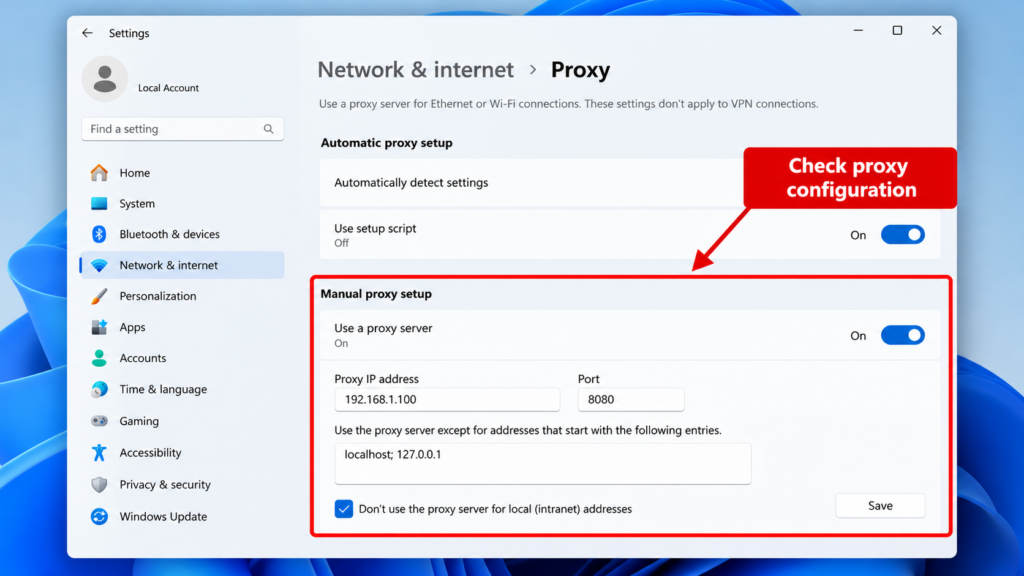
For Windows 11, open:
Settings → Network & internet → Proxy
Review whether a manual proxy is enabled.
If you configured the proxy yourself and no longer need it, you can turn it off.
If the device belongs to your school, employer, or organization, do not disable required network controls without permission.
For VPN users, try switching to another approved server or protocol if your provider supports it.
If the error disappears when the VPN is disconnected, investigate the VPN configuration rather than assuming Chrome is defective.
Method 5: Clear Chrome Cache and Site Data
Chrome stores cached website resources and site information to improve loading performance.
Corrupted or outdated site data can sometimes contribute to loading problems, although cache clearing is not a direct remedy for a genuine TCP connection reset.
To clear cached files:
- Open Google Chrome.
- Select the three-dot menu.
- Open Delete browsing data.
- Choose the desired time range.
- Select Cached images and files.
- Confirm the deletion.
- Reload the affected website.
If you also delete cookies and site data, you may be signed out of websites.
Start with cached files rather than deleting all browser data.
If the issue occurs on only one website, consider clearing that site’s data instead of removing information for every website.
Method 6: Update Google Chrome
An outdated browser may have compatibility issues with websites, extensions, or network-related software.
Open Chrome and navigate to:
chrome://settings/help
Chrome will check for available updates.
Install any available update and relaunch the browser if prompted.
After restarting, test the affected website.
Updating Chrome also helps maintain browser security, making it a sensible maintenance step even when the connection reset has another cause.
Method 7: Check Chrome Extensions
Some extensions modify network requests, block scripts, manage proxies, or filter website content.
To review installed extensions, enter:
chrome://extensions/
Temporarily turn off recently installed or suspicious extensions.
Then reload the affected website.
If the error disappears, re-enable extensions one at a time to identify the likely cause.
Do not remove extensions blindly if they are required for work or school.
You should also avoid installing unfamiliar “connection repair” extensions that request broad browsing permissions.
Method 8: Reset Winsock on Windows 11 or Windows 10
Windows Winsock provides networking interfaces used by applications.
If the system’s networking configuration is damaged or inconsistent, resetting Winsock may help.
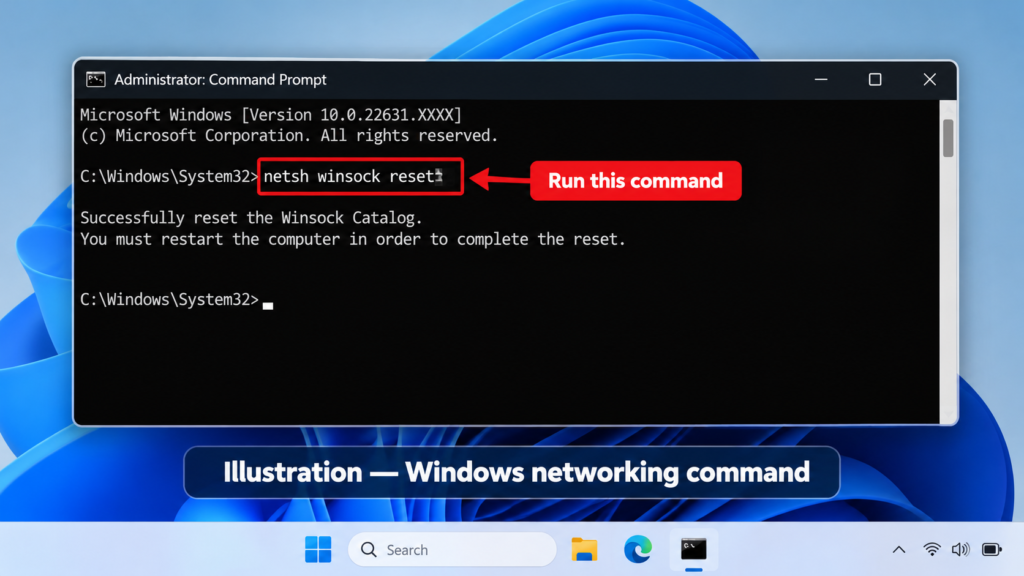
Open the Start menu and search for Command Prompt.
Choose Run as administrator.
Enter:
netsh winsock reset
Press Enter.
Restart your computer when prompted.
After restarting, open Chrome and test the website.
This command affects Windows networking configuration and should be used when simpler troubleshooting steps have failed.
It is not guaranteed to resolve a server-side reset or a website-specific firewall issue.
Method 9: Flush the Windows DNS Cache
Windows stores recently resolved domain information in a local DNS cache.
If a domain’s cached information is incorrect or outdated, clearing the cache may help the system obtain updated DNS information.
Open Command Prompt as administrator and run:
ipconfig /flushdns
Press Enter.
Windows should display a confirmation that the DNS resolver cache was flushed.
Reopen Chrome and test the website.
Important: This command clears cached DNS information. It does not repair a broken TCP connection, faulty router, or server-side reset by itself.
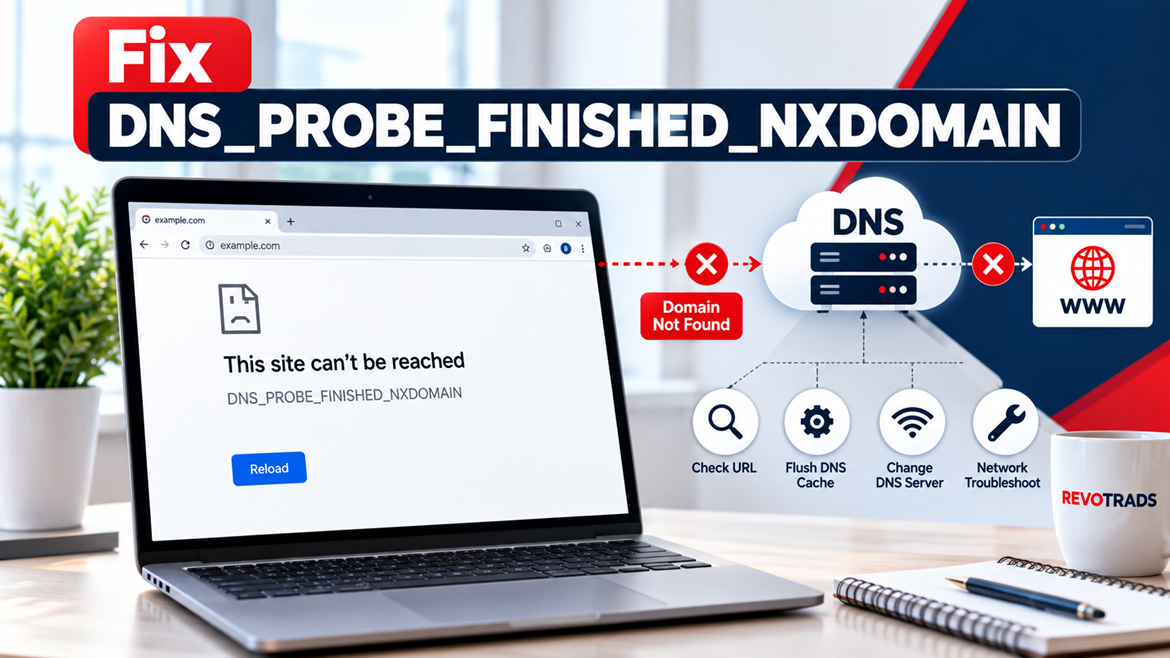
For a detailed explanation of DNS errors, see Revotrads’ guide to fixing DNS_PROBE_FINISHED_NXDOMAIN.
Method 10: Test Another DNS Resolver
Changing DNS resolvers may be useful if you suspect incorrect DNS responses or problems with the resolver provided by your network.
Two commonly used public DNS services are Google Public DNS and Cloudflare DNS.
| Provider | Primary IPv4 DNS | Secondary IPv4 DNS |
|---|---|---|
| Google Public DNS | 8.8.8.8 | 8.8.4.4 |
| Cloudflare DNS | 1.1.1.1 | 1.0.0.1 |
On Windows 11, open Settings → Network & internet, select your active network connection, and find the DNS server assignment settings.
You can temporarily configure an alternative trusted resolver for testing.
If the problem continues, restore your previous settings.
Changing DNS can affect filtering, privacy, and internal hostname resolution. Students or employees using managed networks should follow their organization’s requirements.
Method 11: Review Firewall, Antivirus, and Network Security Settings
Security applications can inspect connections and block traffic according to their configured policies.
If ERR_CONNECTION_RESET affects only certain websites, check whether antivirus software, a firewall, or DNS-filtering software has recently blocked them.
Review the security product’s event logs or notifications.
If a legitimate website is incorrectly blocked, use an appropriate allowlist or contact the network administrator.
Do not permanently disable your firewall or antivirus protection to make a website load.
A connection error alone does not prove that a website is safe.
If the error started immediately after a security software update, check the vendor’s support documentation for known compatibility problems.
Method 12: Use Windows Network Reset as a Last Resort
If several applications and websites continue to experience network problems after basic troubleshooting, Windows offers a broader network reset option.
On Windows 11, open:
Settings → Network & internet → Advanced network settings → Network reset
Review the information and choose the reset option only if necessary.
Windows may remove and reinstall network adapters and restore their settings to defaults.
This can affect VPN software, virtual switches, custom IP configuration, and saved network settings.
Record important network configuration details before proceeding.
If your computer uses a static IP address or is managed by an organization, contact your administrator before performing a reset.
A Windows network reset should be a last resort, not the first step for a single website showing ERR_CONNECTION_RESET.
How to Fix ERR_CONNECTION_RESET on macOS
Mac users can experience the same connection reset error because it is not exclusive to Windows.
Start by testing the website in another browser and checking whether other websites work.
Restart Chrome and reconnect to Wi-Fi.
If you use a VPN, review its settings and test without it when permitted.
You can also inspect your Mac’s network configuration under System Settings → Network.
If you suspect a DNS problem, review the DNS servers configured for the active network.
Before changing network settings, record the original values so they can be restored.
If the error affects every browser and multiple websites, investigate your router, internet service provider, or device-level security software.
If it affects only one website, the problem may be on the website’s side.
How to Fix ERR_CONNECTION_RESET on Android
Android users may encounter ERR_CONNECTION_RESET when using Chrome over Wi-Fi or mobile data.
First, close and reopen Chrome.
Next, switch between Wi-Fi and mobile data to see whether the error occurs on both connections.
If the problem affects Wi-Fi only, restart your router.
You can also update Chrome through the Google Play Store.
If you use a VPN or a custom Private DNS service, review its settings.
On many Android devices, Private DNS settings are available under Settings → Network & internet → Private DNS, although the exact menu varies by manufacturer.
If the error affects only one website, try another browser or device before changing system settings.
Avoid resetting the entire phone for a single connection error.
ERR_CONNECTION_RESET on Only One Website: What Does It Mean?
When other websites load normally but one domain repeatedly displays ERR_CONNECTION_RESET, the problem may be related to that particular website or the route used to reach it.
Possible explanations include a web server closing connections, a firewall rule, a CDN configuration issue, a reverse proxy problem, or a network path that fails for certain users.
However, the error can also be caused by browser extensions or local security software that treats one domain differently.
To narrow the cause, test the website in another browser and on an independent network.
If the website fails across several networks and devices, contact its support team or administrator.
If it fails only on your computer, investigate local browser and network settings first.
How Website Owners Can Troubleshoot ERR_CONNECTION_RESET
Website administrators should approach connection reset errors differently from ordinary visitors.
If customers report ERR_CONNECTION_RESET, investigate whether the failure occurs before the request reaches the web server or during communication with the application.
Check web server logs, reverse proxy logs, firewall events, load balancer health, and CDN security settings.
For websites running Nginx or Apache, review recent configuration changes and error logs.
Check whether a security rule is resetting legitimate connections.
Also investigate whether the problem affects specific client networks, geographic regions, or IP address ranges.
For HTTPS websites, verify that TLS termination and proxy configurations are functioning correctly.
Do not assume that changing DNS records will solve a reset when the domain already resolves to the correct destination.
If the issue began after deploying a new firewall policy, CDN configuration, or application release, compare the timing with the first reported errors.
For production websites, use controlled changes and preserve logs before restarting services.
ERR_CONNECTION_RESET vs Other Chrome Errors
| Chrome Error | What It Usually Indicates | Where to Investigate |
|---|---|---|
| ERR_CONNECTION_RESET | Connection interrupted or reset | Network, VPN, firewall, server |
| ERR_CONNECTION_TIMED_OUT | Connection did not complete in time | Routing, network, server |
| ERR_CONNECTION_REFUSED | Connection was refused | Server, port, firewall |
| ERR_INTERNET_DISCONNECTED | Device is not connected to the internet | Wi-Fi, Ethernet, mobile network |
| DNS_PROBE_FINISHED_NXDOMAIN | DNS reports the domain does not exist | DNS resolver, domain records |
| ERR_NETWORK_CHANGED | Network changed during connection | Wi-Fi, VPN, network switching |
Understanding these differences helps avoid using the wrong troubleshooting method.
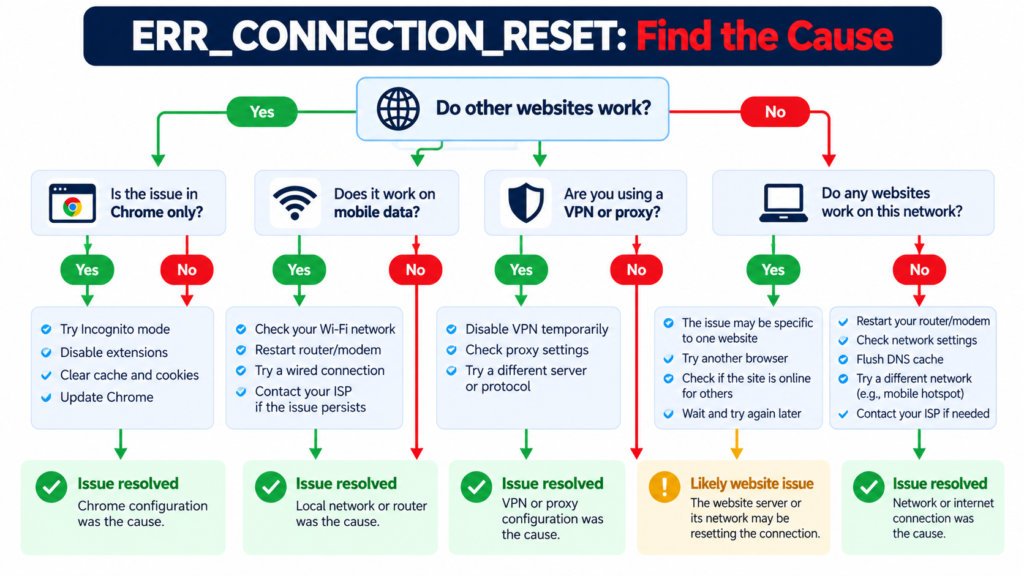
Quick Troubleshooting Table
| Symptom | Likely Area to Investigate | First Recommended Step |
|---|---|---|
| All websites fail in Chrome | Browser or network | Test another browser |
| One website fails in all browsers | Website or network path | Test another network |
| Works on mobile data, fails on Wi-Fi | Router, ISP, or Wi-Fi network | Restart router |
| Error appears after VPN connection | VPN configuration | Review VPN settings |
| Chrome fails but another browser works | Chrome configuration or extensions | Test Incognito and extensions |
| Multiple apps have connection problems | Operating system or network | Run network diagnostics |
| Website fails for many users | Server, CDN, firewall, or upstream network | Check server and security logs |
How to Prevent ERR_CONNECTION_RESET Errors
Not every connection reset can be prevented because some failures occur outside the user’s control.
However, maintaining an updated browser and operating system can reduce avoidable compatibility problems.
Use a reliable internet connection, keep router firmware updated when supported, and avoid unnecessary VPN or proxy changes.
Review security software notifications rather than disabling protection without investigating the cause.
For website owners, monitor server availability, connection errors, network stability, and firewall changes.
Maintain clear documentation of network configuration changes so unexpected failures can be investigated more quickly.
Frequently Asked Questions
1. What does ERR_CONNECTION_RESET mean in Chrome?
ERR_CONNECTION_RESET means Chrome’s connection to the website was unexpectedly interrupted or reset. The cause may involve your network, VPN, firewall, browser environment, or the destination server.
2. How do I fix ERR_CONNECTION_RESET on Windows 11?
Start by restarting Chrome, testing another browser, and checking the internet connection. If the issue persists, review VPN and proxy settings, update Chrome, and investigate Windows networking. Use Winsock or network reset only when appropriate.
3. Is ERR_CONNECTION_RESET caused by a virus?
Not necessarily. Most cases are related to connection or configuration problems. Malware can sometimes alter network settings, but this error alone is not evidence of infection.
4. Can DNS cause ERR_CONNECTION_RESET?
DNS-related problems can contribute indirectly if a hostname resolves to an incorrect destination. However, ERR_CONNECTION_RESET is generally a connection interruption rather than an NXDOMAIN DNS failure.
5. Why does ERR_CONNECTION_RESET happen on only one website?
The affected website may have server, CDN, firewall, or routing problems. Local extensions or security software may also interfere with that specific domain.
6. Does clearing Chrome cache fix ERR_CONNECTION_RESET?
It may help if corrupted site data contributes to loading problems, but it does not directly fix a connection being reset by a network device or server.
7. Can a VPN cause ERR_CONNECTION_RESET?
Yes. VPN connection problems, routing rules, or security filtering can interfere with browser connections. Testing without the VPN, when permitted, can help identify the cause.
8. What does netsh winsock reset do?
The command resets the Windows Winsock catalog, which can help resolve certain networking configuration problems. It requires a restart and is not a universal solution for Chrome errors.
9. Is ERR_CONNECTION_RESET a server-side problem?
It can be. Web servers, firewalls, load balancers, and network infrastructure may reset connections. However, the same error can also originate from the user’s device or network.
10. How do I fix ERR_CONNECTION_RESET on Android?
Restart Chrome, switch between Wi-Fi and mobile data, check VPN or Private DNS settings, and update the browser. If the issue affects only one website, test it on another device.
11. Is ERR_CONNECTION_RESET the same as ERR_CONNECTION_REFUSED?
No. ERR_CONNECTION_REFUSED generally indicates that the connection attempt was refused, while ERR_CONNECTION_RESET indicates a connection was interrupted or reset.
12. Should I reinstall Chrome to fix ERR_CONNECTION_RESET?
Reinstallation is rarely necessary as an initial step. Check network connectivity, extensions, updates, VPN settings, and security software first.
Final Thoughts
ERR_CONNECTION_RESET in Chrome can be frustrating, especially when other websites appear to work normally.
However, the error becomes easier to troubleshoot when you first determine whether it affects one website, one browser, one device, or an entire network.
Begin with simple actions such as reloading the page, restarting Chrome, checking your internet connection, and testing another network.
If the issue persists, investigate VPN settings, extensions, security software, and operating system network configuration.
Website owners should focus on server logs, firewall rules, CDN settings, and upstream network behavior.
The most effective approach is to identify the source of the connection reset before making major changes. This reduces unnecessary troubleshooting and helps resolve the actual problem.
Continue learning with Revotrads: Explore our guides on DNS_PROBE_FINISHED_NXDOMAIN, Chrome Net Internals, browser troubleshooting, and website connectivity errors.
Technical References
Google Chrome Help:
https://support.google.com/chrome/answer/95669
Microsoft Support — Fix Wi-Fi Connection Issues in Windows:
https://support.microsoft.com/en-us/windows/experience/connectivity-networking/fix-wi-fi-connection-issues-in-windows
Microsoft Support — Fix Ethernet Connection Problems:
https://support.microsoft.com/en-us/windows/experience/connectivity-networking/fix-ethernet-connection-problems-in-windows