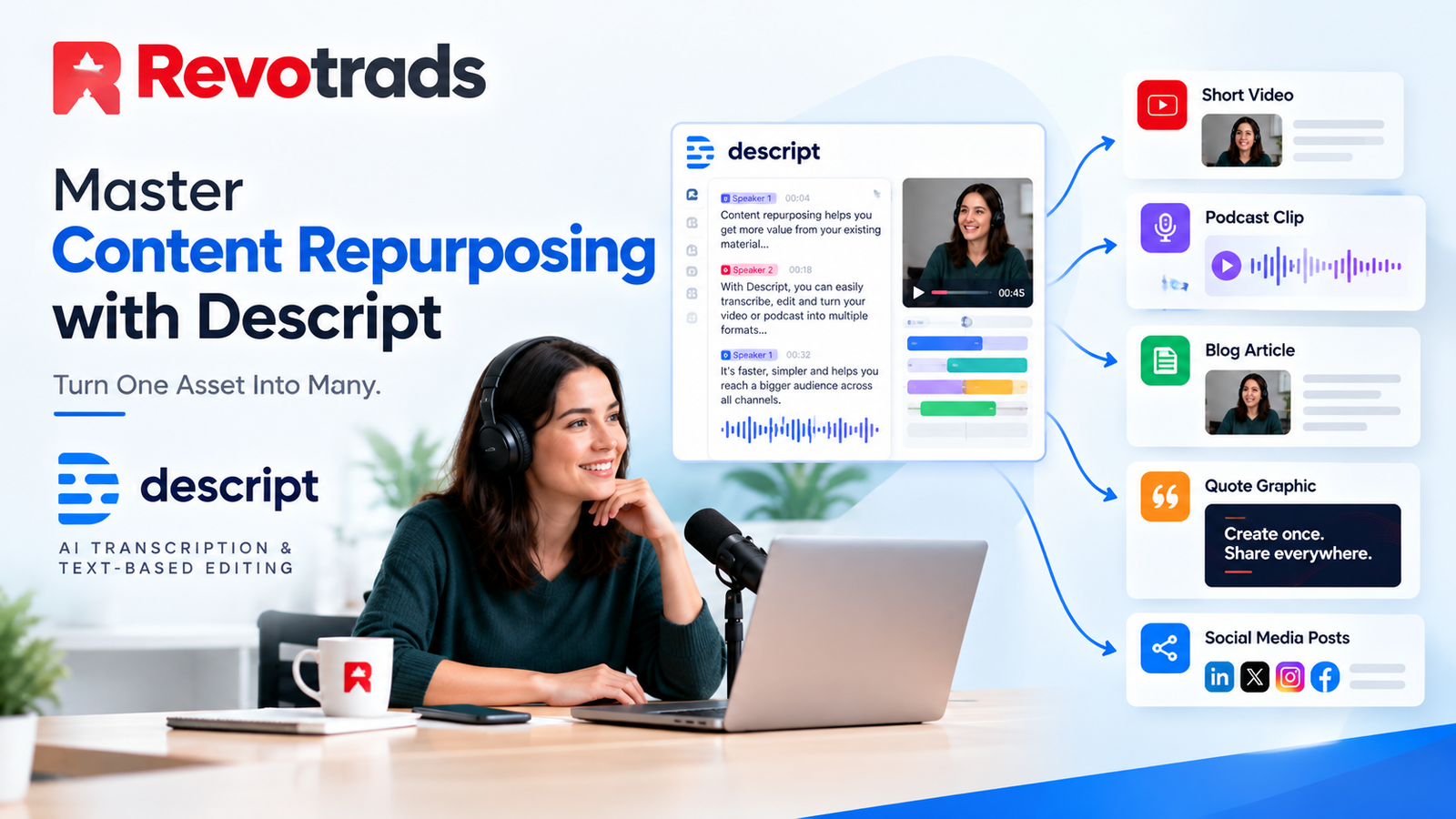
In the relentless world of digital marketing and content creation, one truth reigns supreme: consistency is king, but time is often the biggest bottleneck. You pour hours into crafting an insightful webinar, recording an in-depth podcast, or conducting a valuable interview. It’s a fantastic piece of content, but once it’s live, how do you ensure it reaches its full potential beyond its initial platform?
The answer, for savvy freelancers, marketers, founders, and small businesses, lies in intelligent content repurposing. But let’s be honest, manually chopping up videos, transcribing audio, and reformatting for different channels can be an incredibly tedious, time-consuming, and expensive endeavor.
What if there was a tool that could turn this daunting task into a streamlined, almost enjoyable process? Enter Descript – the revolutionary all-in-one audio and video editor that’s changing the game for content creators worldwide. Descript isn’t just an editing suite; it’s a content repurposing powerhouse, making it easier than ever to transform one piece of stellar content into a multichannel marketing machine.
In this long-form guide, we’ll dive deep into why Descript is the secret weapon you need for your content strategy. We’ll provide a practical, step-by-step tutorial on how to leverage its unique features to spin one long-form asset into a diverse array of blog posts, social media clips, audiograms, and more, saving you hours of effort and dramatically expanding your reach.
The Content Overload Problem & The Repurposing Revolution
Every day, billions of pieces of content flood the internet. Standing out is harder than ever. Your audience isn’t just on one platform; they’re on YouTube, Instagram, TikTok, LinkedIn, Twitter, listening to podcasts, and reading blogs. Expecting them to consume your content in a single format is unrealistic.
This is where content repurposing becomes not just a strategy, but a necessity. Repurposing means taking existing content and adapting it into new formats to extend its life, reach new audiences, and reinforce your message across various channels. It’s about working smarter, not harder, to maximize the return on investment of every piece of content you create.
Why Content Repurposing Is Crucial for Your Business:
- Maximize ROI: You’ve already invested time, effort, and possibly money into creating the original piece. Repurposing ensures you get more mileage out of that initial investment.
- Reach Wider Audiences: People consume content differently. A podcast listener might never watch your YouTube video, but they might read your blog post or see your Instagram reel.
- Improve SEO: More unique, relevant content across your website (transcriptions, blog posts derived from video) signals authority to search engines and creates more opportunities to rank.
- Strengthen Your Message: Repeating key messages across different formats reinforces your expertise and brand identity, building trust and familiarity.
- Combat Content Fatigue: Constantly generating brand-new, long-form ideas can be exhausting. Repurposing allows you to maintain a consistent content calendar without burnout.
- Test & Optimize: By presenting your core ideas in various formats, you can better understand what resonates most with different segments of your audience.
- Build Authority & Credibility: A consistent, diverse content presence positions you as an expert in your niche.
While the benefits are clear, the traditional repurposing workflow often involves a complex dance between transcription services, video editors, graphic designers, and copywriters. This is precisely the pain point Descript was built to eliminate.
Why Descript is Your Secret Weapon for Repurposing
Descript stands apart from traditional video and audio editors with its unique approach to editing: text-based editing. Imagine editing a video or audio file by simply editing a text document. That’s Descript in a nutshell, and it fundamentally changes how quickly and efficiently you can repurpose content.
Key Features That Make Descript a Repurposing Powerhouse:
1. Text-Based Video and Audio Editing
- Edit Like a Document: When you import a video or audio file, Descript automatically transcribes it. You can then edit the media by cutting, copying, and pasting text in the transcript. Deleting a word in the text deletes the corresponding audio/video clip. This is revolutionary for speed and precision.
- Automatic Transcription: Fast, accurate AI transcription (with speaker identification) is a core feature. This provides the foundation for all your text-based repurposing efforts.
2. AI-Powered Enhancements for Polish & Efficiency
- Filler Word Removal: Automatically detect and remove ‘ums,’ ‘uhs,’ ‘you knows,’ and other distracting filler words with a single click, instantly cleaning up your content.
- Silence Removal: Condense long pauses to make your content snappier and more engaging.
- Studio Sound: Enhance voice recordings by removing background noise and improving sound quality with AI, making even amateur recordings sound professional.
- Eye Contact & Green Screen (Beta): Descript continues to innovate, offering features that can correct eye gaze or apply virtual backgrounds, further streamlining video production.
3. Seamless Multi-Track & Multimodal Editing
- Combine Media: Easily add music, sound effects, images, GIFs, and overlay text directly within your compositions.
- Screen Recording: Built-in screen recording functionality makes it easy to create tutorial videos or add supplementary visuals to your content.
4. Collaborative Workspace
- Team Projects: Share projects with team members, allowing for real-time collaboration, comments, and edits. Perfect for agencies or internal marketing teams.
- Version History: Keep track of changes and revert to previous versions if needed.
5. Versatile Export & Publishing Options
- Multi-Format Export: Export audio (MP3, WAV), video (MP4), and text (DOCX, SRT, VTT, HTML) in various resolutions and quality settings.
- Aspect Ratios: Easily reformat videos for different platforms (16:9 for YouTube, 1:1 for Instagram, 9:16 for TikTok/Reels).
- Direct Publishing: Integrate with platforms like YouTube, Vimeo, and podcast hosts for direct uploads.
By bringing transcription, editing, mixing, screen recording, and AI enhancements into one intuitive interface, Descript empowers you to transform your content at a speed and scale previously unimaginable. It democratizes the sophisticated editing processes once reserved for specialized professionals, putting immense power into the hands of freelancers and small businesses.
Setting Up for Success: Your Descript Workflow Foundation
Before we dive into the specific repurposing steps, let’s ensure you have a solid understanding of Descript’s core interface and workflow.
1. Creating a New Project & Importing Your Source Content
- Open Descript: Launch the application.
- New Project: Click ‘New Project’ from the home screen or ‘File > New Project’.
- Name Your Project: Give it a descriptive name (e.g., ‘Webinar Repurposing – October 2026’).
- Create a New Composition: Within the project, create a ‘New Composition’. This is where your main media will reside.
- Import Media: Drag and drop your long-form video or audio file (e.g., your webinar recording, podcast episode, interview footage) directly into the composition. Descript will immediately begin transcribing it.
2. Understanding the Descript Interface
- The Script (Left Panel): This is the heart of Descript. It displays the AI-generated transcript of your media. You’ll primarily interact with this text to edit your content.
- The Canvas/Viewer (Center Panel): For video projects, this shows your video playback. For audio, it’s a waveform visualization. You’ll see real-time changes as you edit the script.
- The Timeline (Bottom Panel): A more traditional editor’s timeline, showing audio tracks, video tracks, and any added layers (music, sound effects, visuals). While text-based editing is primary, the timeline offers precise control for fine-tuning.
- Properties Panel (Right Panel): Contextual settings for selected elements (text, audio, video clips, entire composition). Here you can adjust volume, add effects, change text styles, and more.
- Tools & Insert Bar (Top Left): Access tools like the ‘Selection Tool’ (default, for editing text), ‘Correction Tool’ (for correcting transcription errors), and ‘Insert’ menu for adding titles, images, videos, audio, and more.
3. Initial AI Magic: Transcription & Speaker Identification
- Review Transcription: Once the transcription is complete, quickly scan through it. While Descript’s AI is highly accurate, it’s always good to catch any misspellings or misinterpretations. Use the ‘Correction Tool’ (or just double-click the word) to make edits.
- Identify Speakers: If you have multiple speakers, Descript will often detect them as ‘Speaker 1,’ ‘Speaker 2,’ etc. Click on these labels in the script to rename them (e.g., ‘Host,’ ‘Guest’). This is crucial for clarity and later for extracting specific speaker segments.
With your foundational knowledge in place, let’s embark on the exciting journey of transforming your single long-form asset into a diverse portfolio of content.
Step-by-Step Tutorial: Transforming a Webinar into Multi-Platform Content
For this tutorial, let’s assume you have a 60-minute webinar recording that you want to repurpose. We’ll turn it into a blog post, several social media video clips, and audio snippets.
Phase 1: The Core Content Extraction (Blog Post / Long-form Text)
Your webinar’s transcript is a goldmine for textual content. It can form the basis of a detailed blog post, an article, an email series, or even an e-book chapter.
Step 1.1: Clean Up the Transcript for Readability
Webinar transcripts often include conversational fillers, repetitions, and tangent discussions that don’t translate well to written text. This is where Descript shines.
- Remove Filler Words: Go to the ‘Script’ panel (left sidebar), click on the ‘three dots’ menu next to ‘Find & Replace’, and select ‘Remove Filler Words’. Descript will highlight all detected filler words. You can review them and click ‘Apply to All’ or selectively remove them.
- Remove Silence Gaps: In the same menu, you can find ‘Shorten Word Gaps’. Adjust the threshold (e.g., shorten gaps longer than 1.5 seconds) to make the overall flow tighter.
- Identify & Cut Irrelevant Sections: Read through the transcript. Highlight large sections of text that are off-topic, administrative announcements, or extended Q&A that you don’t want in the main blog post. Press ‘Delete’ (or ‘Backspace’) to remove them. This will also cut the corresponding video/audio. Don’t worry, you can always undo or recover these sections if needed.
- Improve Grammar & Flow (Text Only): While Descript edits the media, you’re also refining the raw text. Correct any transcription errors, awkward phrasing, or grammatical issues directly in the script. Remember, we’re aiming for a polished written piece.
Step 1.2: Export the Polished Text
Once your script is clean and concise, it’s ready for export.
- Select Export: Click the ‘Share’ button in the top right corner, then select ‘Export’.
- Choose ‘Text’: Under the ‘Text’ tab, select ‘Docx’ (for Word document) or ‘HTML’ (if you prefer web-ready format). You can also choose ‘Plain Text’ for maximum flexibility.
- Export Settings: Ensure ‘Exclude filler words’ is checked if you used the filler word removal feature. You might want to include speaker labels initially, but you can remove them later in your word processor.
- Save: Click ‘Export’ and choose a location to save your file.
Step 1.3: Refine for Blog Readability (Outside Descript)
Now, open your exported text in Google Docs, Microsoft Word, or your preferred writing tool.
- Add Headings & Subheadings: Break up the text into logical sections using H2, H3, etc., based on the webinar’s structure.
- Introduce & Conclude: Write a compelling introduction and conclusion specific to the blog post format.
- Add Visuals: Integrate screenshots from the webinar (which you can also capture directly in Descript!), relevant images, or custom graphics.
- Insert Calls to Action: Guide readers on what to do next (download a lead magnet, sign up for your newsletter, check out a product).
- Optimize for SEO: Incorporate relevant keywords naturally throughout the text.
Phase 2: Crafting Engaging Social Media Snippets (Short Videos/Audiograms)
Short, punchy video clips are perfect for platforms like Instagram Reels, TikTok, LinkedIn, and Facebook. Descript makes this incredibly simple.
Step 2.1: Identify Key Moments
Review your cleaned-up transcript (or re-watch the original webinar). Look for:
- Powerful Soundbites: Short, impactful statements (15-60 seconds).
- Key Takeaways: Crucial pieces of advice or insights.
- FAQs: Concise answers to common questions.
- Actionable Tips: Specific steps or strategies.
Step 2.2: Create New Compositions for Each Snippet
Instead of editing your main composition, create separate, smaller compositions for each social media clip. This keeps your main project clean and allows for independent editing.
- Duplicate & Extract: In your main composition, highlight the text corresponding to your chosen snippet. Right-click the highlighted text and select ‘Duplicate to new Composition’. Name it something specific (e.g., ‘Webinar Clip – Productivity Hack’).
- Adjust Length: Fine-tune the start and end points of your new composition by dragging the edges of the selection in the timeline or by simply deleting text from the script. Aim for 15-90 seconds, depending on the platform.
Step 2.3: Enhance Visuals and Add Captions
Social media videos need to be visually appealing and accessible, especially for viewers without sound.
- Aspect Ratio Adjustment: With your new composition open, go to the ‘Properties’ panel (right sidebar). Under ‘Canvas’, click on the aspect ratio dropdown (usually 16:9). Select ‘1:1 Square’ for Instagram/Facebook, ‘9:16 Vertical’ for Reels/TikTok/Stories, or ‘Custom’ if needed. Descript will automatically adjust and give you options to fit or fill the frame.
- Add Text Overlays/Titles: Use the ‘T’ button in the toolbar (or ‘Insert > Title’) to add a catchy title, key quote, or call to action directly onto the video. Customize fonts, colors, and positioning in the ‘Properties’ panel.
- Automated Captions (Burned-in Subtitles): This is critical for social media. Click ‘Insert > Fancy Captions’. Descript will automatically generate captions based on your transcript, synchronized with the audio. Customize the font, size, color, background, and animation in the ‘Properties’ panel to match your brand. Choose a style where the current word is highlighted for better readability.
- Add Progress Bar (Optional): For longer social videos, a progress bar keeps viewers engaged. Click ‘Insert > Progress Bar’ and customize its appearance.
- Add Background Music (Optional): Go to ‘Insert > Audio’ and select from Descript’s stock music library or upload your own. Adjust the volume in the timeline so it doesn’t overpower the speaker’s voice.
Step 2.4: Export Social Media Clips
- Select Export: Click ‘Share > Export’.
- Choose ‘Video’: Ensure ‘Video’ tab is selected.
- Settings: Select a suitable resolution (e.g., 1080p for most platforms). Make sure ‘Include fancy captions’ is checked if you added them.
- Format: MP4 is the standard for social media.
- Save: Click ‘Export’ for each of your social media compositions.
Phase 3: Generating Standalone Audio Clips (Podcast Snippets / Voice Notes)
Not every snippet needs video. Short audio clips are great for sharing on audio-focused platforms, as teasers for your podcast, or even as voice notes in newsletters.
Step 3.1: Extract Audio-Only Highlights
Similar to video clips, identify impactful audio segments from your main composition.
- Duplicate to New Composition: Highlight the desired text segment, right-click, and select ‘Duplicate to new Composition’. Name it (e.g., ‘Webinar Audio Snippet – Sales Tip’).
Step 3.2: Enhance Audio with Studio Sound
Make sure your audio sounds crisp and professional.
- Apply Studio Sound: With your audio-only composition open, click on the audio track in the timeline or select the speaker’s name in the script. In the ‘Properties’ panel, under ‘Audio Effects’, toggle on ‘Studio Sound’. Descript’s AI will automatically clean up background noise and improve vocal clarity. Adjust the intensity slider if needed.
Step 3.3: Export as MP3s
- Select Export: Click ‘Share > Export’.
- Choose ‘Audio’: Select the ‘Audio’ tab.
- Format: Choose ‘MP3’ for universal compatibility.
- Settings: Select quality (e.g., 192 kbps for good quality, smaller file size).
- Save: Click ‘Export’.
Phase 4: Visualizing Key Takeaways (Images/Quotes)
Don’t forget the power of static images! Quotes and key statistics from your webinar can be turned into highly shareable graphics.
Step 4.1: Capture Screenshots Directly from Descript
While playing your main composition, pause at a moment where a key idea is being discussed or a slide is being displayed.
- Screenshot Tool: Click on the camera icon in the viewer (center panel) to take a screenshot. This will save a high-quality image of the current frame to your project files.
- Export Screenshots: You can right-click on the screenshot in your ‘Media Library’ (left sidebar, under ‘Files’) and choose ‘Export’.
Step 4.2: Create Quote Cards (Using Screenshots or External Tools)
- Using Descript: You can overlay text directly onto a blank video composition or a still image within Descript to create a quote card. This is particularly useful if you want to include a speaker’s image alongside their quote.
- External Tools: For more advanced design, export your screenshots and key quotes (copied from the transcript) and use tools like Canva or Adobe Express to design visually appealing quote cards with your branding.
Phase 5: Automation & Workflow Optimization
Descript, while powerful, can also be integrated into a larger automated workflow to further boost efficiency.
- Templates: Once you’ve created a great-looking social media clip with your brand’s fonts, colors, captions, and intro/outro, save it as a template! Right-click on your composition in the ‘Project’ sidebar and select ‘Save as Template’. Next time, you can start with this template and just swap out the core media.
- Folder Organization: Keep your Descript projects organized with folders for different content types (e.g., ‘Webinar Transcripts’, ‘Social Clips’, ‘Podcast Snippets’).
- Integration with Other Tools (Briefly): While Descript doesn’t have direct Zapier integrations for exporting, you can build workflows where the *output* of Descript (e.g., exported video or text) triggers subsequent actions in other tools (e.g., uploading to cloud storage, notifying your social media scheduler).
Advanced Descript Features for Repurposing Pros
Once you’re comfortable with the basics, explore these advanced features to further refine your repurposing workflow:
- Overdub: Made a minor mistake, or need to rephrase a sentence without re-recording? Descript’s Overdub feature (trained on your voice) can generate new audio with your voice simply by typing new words into the script. This is invaluable for quick corrections in repurposed content without interrupting flow.
- Scenes: For complex video projects or webinars with distinct segments, use ‘Scenes’ to break up your composition. This makes navigation and extraction of specific sections much easier. You can often automatically create scenes based on slide changes in a video.
- Markers: Drop markers in your timeline or script to quickly identify key moments, topics, or potential snippet locations for later review.
- Version History: Don’t be afraid to experiment. Descript’s version history allows you to revert to previous edits if you make a mistake or want to try a different approach.
- Publishing to Drive/Cloud: Beyond direct exports, Descript allows you to publish directly to cloud storage services like Google Drive or Dropbox, streamlining your file management.
Best Practices for Maximizing Your Repurposing Strategy
Descript provides the tools, but a smart strategy ensures maximum impact:
- Start with High-Quality Source Content: The better your original webinar, podcast, or video, the better your repurposed assets will be. Invest in good audio and clear delivery.
- Know Your Platforms: Understand the ideal length, aspect ratio, tone, and audience expectations for each platform where you’ll share repurposed content. A TikTok clip is different from a LinkedIn video.
- Plan Your Content Matrix: Before you even start editing, brainstorm all the potential repurposed assets you can create from one piece of content. Create a checklist: 1 blog post, 3 Instagram Reels, 2 LinkedIn video snippets, 1 podcast teaser, 5 quote graphics.
- Batch Your Work: Dedicate specific blocks of time to repurposing. Extract all text content, then all short video clips, then all audio snippets. This helps maintain focus and efficiency.
- Don’t Be Afraid to Trim Aggressively: Short-form content thrives on conciseness. Cut anything that doesn’t directly contribute to the core message of that specific snippet.
- Add Clear Calls to Action (CTAs): Every piece of repurposed content should have a purpose. Guide your audience on what to do next, whether it’s to watch the full webinar, visit your website, or sign up for a newsletter.
- Maintain Brand Consistency: Use consistent fonts, colors, logos, and messaging across all your repurposed content to reinforce your brand identity.
- Test and Learn: Monitor the performance of your repurposed content on different platforms. Which formats get the most engagement? What lengths work best? Use these insights to refine your strategy.
The ROI of Smart Repurposing with Descript
By integrating Descript into your content workflow, you’re not just buying a tool; you’re investing in a powerful efficiency engine that delivers tangible returns:
- Massive Time Savings: What used to take hours or even days across multiple tools can now be done in a fraction of the time. Text-based editing alone is a monumental time-saver.
- Expanded Reach & Engagement: By delivering your valuable insights across various platforms and formats, you dramatically increase the chances of your content being discovered and consumed by a broader audience.
- Improved SEO & Web Traffic: More unique content on your website (derived from your rich media) means more opportunities for organic search visibility and driving traffic.
- Cost Reduction: Reduce or eliminate the need for expensive transcription services, dedicated video editors for minor tasks, or complex software subscriptions.
- Increased Content Output: Maintain a consistent and diverse content calendar without burning out your team or yourself, leading to greater brand presence and authority.
- Stronger Brand Authority: Consistently providing value in multiple formats establishes you as a thought leader in your niche.
Conclusion: Unleash Your Content’s Full Potential with Descript
In today’s competitive digital landscape, working smarter is no longer optional – it’s essential. Content repurposing is the strategy, and Descript is the indispensable tool that makes it incredibly accessible and efficient for everyone from individual freelancers to bustling small businesses.
Gone are the days of painstakingly re-editing or manually transcribing. With Descript’s intuitive text-based editing, powerful AI enhancements, and versatile export options, you can transform a single piece of long-form content into a cascade of high-impact assets tailored for every platform. This not only maximizes your content’s reach and ROI but also frees up invaluable time, allowing you to focus on creating even more great content and growing your business.
Stop letting your valuable content live and die on a single platform. Embrace the Descript revolution, and start turning every webinar, podcast, or video into a multichannel powerhouse. Your audience (and your content calendar) will thank you.
Ready to supercharge your content repurposing efforts? Explore Descript today and transform the way you create and share content.