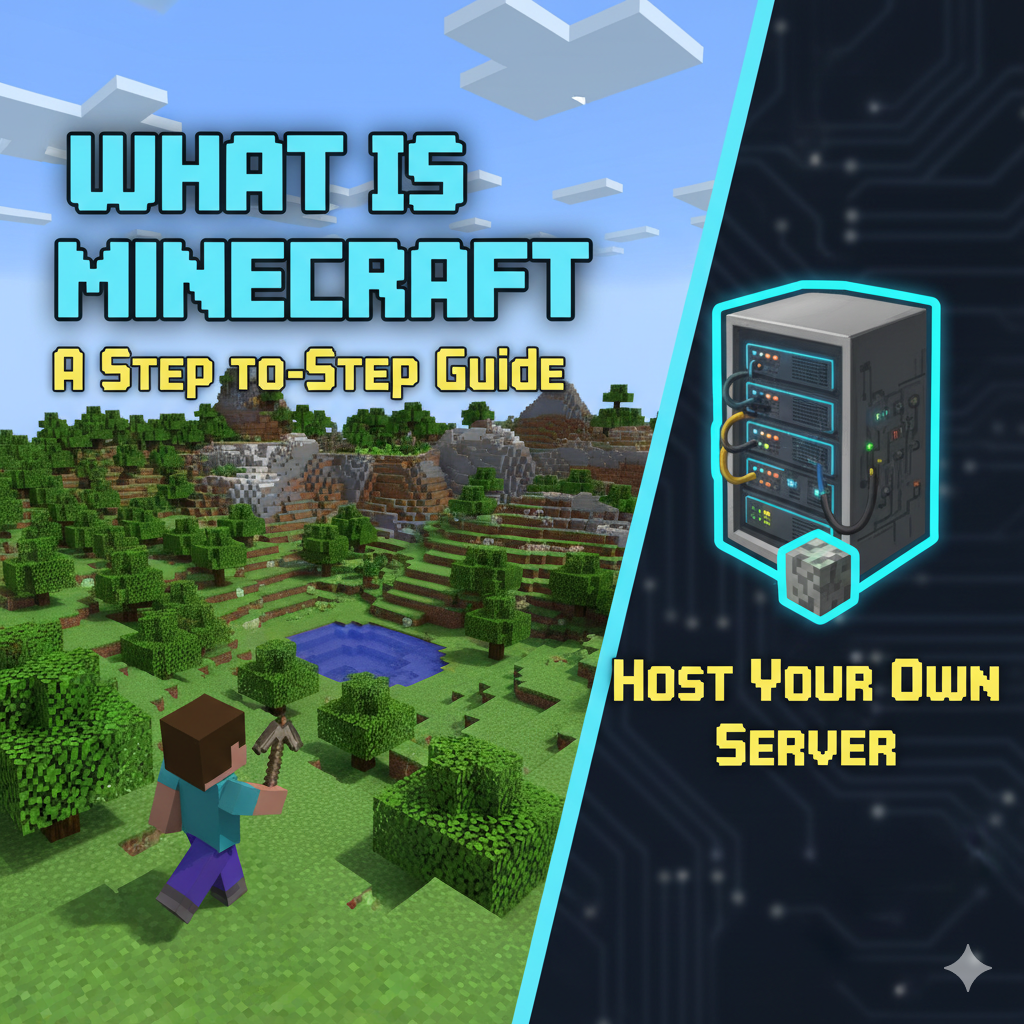
Why Everyone is Talking About Minecraft
Minecraft isn’t just a game — it’s a global phenomenon. Since its initial release in 2009, Minecraft has become one of the most popular sandbox video games ever created. According to Statista (2025), the game boasts over 176 million monthly active players and more than 300 million copies sold, surpassing even classics like Tetris and GTA V.
But beyond gameplay, a huge part of Minecraft’s popularity comes from its multiplayer and community-driven experience. Players can build, explore, and survive together — but to do that smoothly and securely, many opt to host their own Minecraft servers.
What is Minecraft?
Minecraft is an open-world sandbox game developed by Mojang Studios (acquired by Microsoft in 2014). The game allows players to explore a pixelated, procedurally generated 3D world made of blocks, where they can mine resources, craft tools, and build virtually anything.
There are two main game modes:
- Survival Mode – Players must gather resources, craft weapons, and maintain health and hunger.
- Creative Mode – Players have unlimited resources and can freely build and explore.
Minecraft is available on:
- PC (Windows, macOS, Linux)
- Consoles (Xbox, PlayStation, Switch)
- Mobile devices (Android, iOS)
Why Host Your Own Minecraft Server?
Hosting your own Minecraft server gives you complete control over your gaming experience — from performance to player permissions.
Benefits of Hosting Your Own Server
| Benefit | Description |
|---|---|
| Full Control | Customize settings, mods, maps, and gameplay rules. |
| Performance | Optimize server speed, RAM, and CPU for smoother play. |
| Security | Restrict access to trusted players only. |
| Monetization | Option to create public servers and earn via donations. |
| Community Building | Bring friends or fans together in your unique world. |
Step-by-Step Guide to Hosting a Minecraft Server
Let’s dive into the detailed steps to set up your own Minecraft server.
Step 1: Choose Your Server Type
There are two main ways to host your Minecraft world:
| Type | Description | Best For |
|---|---|---|
| Self-Hosted (Local) | Runs directly on your own PC. | Personal/small-scale gaming |
| VPS/Dedicated Hosting | Hosted on a remote server like Net2Secure VPS. | Multiplayer, community, or public servers |
Pro Tip: For stable uptime, security, and lag-free experience, VPS or cloud hosting is highly recommended.
Step 2: Check System Requirements
Minimum System Requirements (for 10 players)
| Resource | Requirement |
|---|---|
| CPU | Intel i5 / AMD Ryzen 3 or higher |
| RAM | 4 GB |
| Storage | 10 GB SSD |
| Bandwidth | 1 Gbps recommended |
| OS | Windows 10+, Ubuntu 22.04+, Debian 12+ |
Recommended for Larger Servers (20–100 players)
| Resource | Recommended |
|---|---|
| CPU | Intel Xeon / Ryzen 7 |
| RAM | 8–16 GB |
| Storage | NVMe SSD 50–100 GB |
| Hosting Type | VPS or Dedicated |
Step 3: Download Minecraft Server Software
- Visit the official Minecraft website:
https://www.minecraft.net/en-us/download/server - Download the latest Minecraft Server .jar file (e.g.,
server.jar) - Save it to a dedicated folder on your desktop or hosting server (e.g.,
/minecraft-server)
Step 4: Configure Your Minecraft Server
After downloading the .jar file:
- Open your command prompt (Windows) or terminal (Linux/macOS)
- Run the following command:
java -Xmx2G -Xms1G -jar server.jar nogui(Adjust the memory allocation based on your RAM — here 2GB max, 1GB min.) - The server will generate a few configuration files like:
eula.txtserver.propertiesops.jsonwhitelist.json
- Open the
eula.txtfile and change:eula=falsetoeula=trueto agree with Mojang’s license.
Step 5: Configure Server Properties
Open the server.properties file in Notepad or any text editor.
Here’s a quick look at important settings:
| Property | Description | Example |
|---|---|---|
server-port | Port number for connections | 25565 |
motd | Message shown on the server list | Welcome to My Minecraft Server! |
max-players | Player limit | 20 |
white-list | Enable/disable whitelist | true |
level-name | World name | myworld |
Step 6: Configure Firewall and Port Forwarding
If you’re hosting locally:
- Open Port 25565 on your router and firewall.
- Ensure Java has network access permissions.
If you’re hosting on a VPS like Net2Secure/Revotrads:
- Configure the firewall using cPanel or command line:
sudo ufw allow 25565
sudo ufw enable
Step 7: Connect to Your Server
- Launch Minecraft and click on Multiplayer → Add Server
- Enter your server name and IP address:
- For local hosting:
localhost - For VPS: Use your public IP (e.g.,
123.45.67.89)
- For local hosting:
- Click Join Server
That’s it — you’re live!
Advanced Tips for a Better Minecraft Server
1. Optimize Performance
- Use PaperMC instead of vanilla for better performance.
- Allocate 4–8 GB RAM for smoother operation.
- Regularly clear unused chunks and entities.
2. Add Plugins and Mods
Add custom experiences using platforms like Spigot, Bukkit, or Forge.
| Plugin Type | Example | Function |
|---|---|---|
| Economy | EssentialsX | Adds in-game money system |
| Security | CoreProtect | Prevents griefing |
| Performance | ClearLag | Reduces lag |
| Fun | DynMap | Live web-based map |
3. Schedule Backups
Automate daily or weekly backups.
Use Net2Secure/Revotrads Cloud Backup or Google Drive API integration.
4. Set Up Permissions
Use plugins like LuckPerms to manage player roles and permissions.
Why Use Net2Secure VPS for Hosting Minecraft
Running Minecraft on your personal system may work for 1–2 players, but for serious gamers or communities, VPS hosting provides much more reliability and power.
Comparison: Local vs Net2Secure VPS
| Feature | Local PC Hosting | Net2Secure VPS Hosting |
|---|---|---|
| Uptime | Dependent on PC | 99.99% uptime guarantee |
| Bandwidth | Home network limits | Up to 1 Gbps |
| Security | Vulnerable to DDoS | Built-in DDoS protection |
| Power | PC must stay ON | Always ON cloud instance |
| Scalability | Manual upgrade | Instant plan upgrade |
| Backup | Manual | Automated cloud backup |
Example Net2Secure Minecraft VPS Plans
| Plan | CPU | RAM | Storage | Data Transfer | Price |
|---|---|---|---|---|---|
| VPS 1 | 2 vCore | 4 GB | 50 GB SSD | 1 TB | ₹799/month |
| VPS 2 | 4 vCore | 8 GB | 100 GB SSD | 1 TB | ₹1,499/month |
| VPS 3 | 6 vCore | 16 GB | 200 GB SSD | 1 TB | ₹2,499/month |
Perfect for 5 to 100 players — fully scalable with instant setup!
Minecraft Server Statistics (2025)
| Metric | Statistic | Source |
|---|---|---|
| Active Players (Monthly) | 176 Million+ | Statista |
| Average Server Size | 12 players | Minecraft Realms Data |
| Popular Hosting Countries | USA, India, Germany | HostAdvice |
| Java Version Usage | 87% of custom servers | Mojang Dev Forum |
| Average Uptime (Pro Servers) | 99.98% | Net2Secure Benchmark |
Frequently Asked Questions (FAQs)
Q1. Is it free to host a Minecraft server?
Yes, you can host it on your local machine for free, but you’ll face lag, downtime, and security risks. For 24/7 uptime, a VPS like Net2Secure is recommended.
Q2. How much RAM do I need for 10 players?
At least 4 GB of RAM is recommended. For modded servers, go for 8 GB or more.
Q3. Can I monetize my Minecraft server?
Yes! You can accept donations or use in-game currency (per Mojang’s commercial usage guidelines).
Q4. Is VPS better than Realms?
Minecraft Realms are simple but limited. VPS gives full control, mod support, and better performance.
Q5. Does Rebotrads support Minecraft servers?
Absolutely. Revotrads VPS servers are optimized for gaming workloads with SSD storage, DDoS protection, and full root access.
Conclusion
Hosting your own Minecraft server is like creating your own world — literally. Whether you’re building a private playground for friends or launching a public community, the control and creativity are endless.
By choosing a reliable VPS host like Revotrads/Net2Secure, you get:
- Faster performance
- Secure environment
- 24/7 uptime
- Affordable pricing
- Technical support for setup and scaling
So, the next time someone asks, “Whose world are we playing in?” — proudly say, “Mine.”