Google Chrome is more than just a web browser – it’s a powerful toolkit packed with advanced settings, diagnostic tools, and developer options that most users never see. Hidden within Chrome are “Chrome URLs” — internal pages that begin with chrome://. These pages give users deep access to everything from performance metrics to memory usage and even browser experiments.
In this article, we’ll dive into Chrome’s hidden URLs, how they work, their importance, and a full categorized list of the most useful ones — all while comparing features across Chrome versions to help you make the most out of them.
What Are Chrome URLs?
Chrome URLs are internal links built into the browser that start with the prefix chrome://. These aren’t regular web pages – instead, they serve as shortcuts to Chrome’s internal configuration and diagnostic tools.
Example:
- Typing
chrome://settings/opens Chrome’s main settings page. - Typing
chrome://flags/opens experimental features.
Each Chrome URL provides specific insights or access to browser components, making them invaluable for developers, testers, and power users.
Why Chrome’s Hidden URLs Exist
The purpose of these internal pages is transparency and control. They allow users to:
- Debug browser performance
- Manage system-level settings
- Access network and cache data
- Enable experimental flags
- View memory and process usage
- Troubleshoot issues like crashes or network failures
Think of them as the “Control Panel” of Chrome – but built right into the browser.
How to Access Chrome URLs
Accessing these hidden URLs is simple:
- Open a new Chrome tab.
- Type any command starting with
chrome://(for example,chrome://about/). - Press Enter.
You’ll instantly open the corresponding internal page.
Note: Some URLs may display “Access Denied” or “This page isn’t available” if restricted by Chrome policies or operating system limitations.
Complete List of Chrome’s Hidden URLs
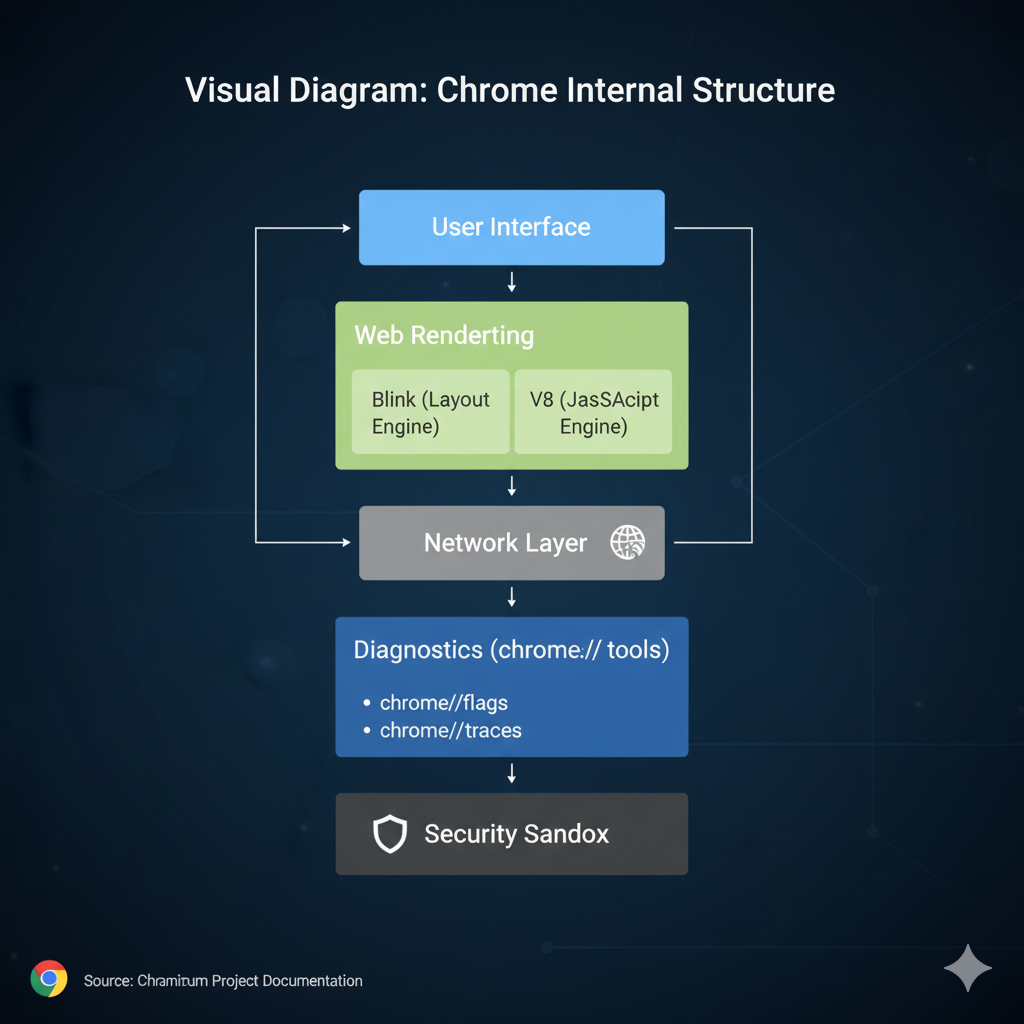
Here’s a categorized list of the most useful Chrome URLs for general users, IT admins, and developers.
1. General Settings and Info
Chrome URL Purpose chrome://settings/Access main settings page chrome://help/View version info and update status chrome://version/Shows Chrome version, profile path, and command line chrome://system/Displays system information used by Chrome chrome://about/Lists all available Chrome URLs
2. Performance and Diagnostics
| Chrome URL | Description |
|---|---|
chrome://gpu/ | Shows GPU acceleration and driver details |
chrome://histograms/ | Performance metrics and telemetry data |
chrome://tracing/ | Record and analyze performance traces |
chrome://net-internals/ | Debug network events and DNS issues |
chrome://quota-internals/ | View disk space usage by sites |
chrome://process-internals/ | View process management data |
3. Security and Privacy
| Chrome URL | Description |
|---|---|
chrome://safe-browsing/ | Shows Safe Browsing diagnostic data |
chrome://policy/ | Lists enterprise or admin policies applied |
chrome://sandbox/ | Displays sandboxing status |
chrome://webrtc-internals/ | Logs WebRTC network and device data |
chrome://password-manager/ | Manage saved passwords and credentials |
4. Developer Tools
| Chrome URL | Description |
|---|---|
chrome://extensions/ | View and manage installed extensions |
chrome://inspect/ | Debug websites, extensions, or connected devices |
chrome://serviceworker-internals/ | View registered service workers |
chrome://apps/ | Lists installed Chrome apps |
chrome://devtools/ | Opens Chrome Developer Tools in a tab |
5. Experimental Features
| Chrome URL | Description |
|---|---|
chrome://flags/ | Access experimental and beta features |
chrome://components/ | Update or manage Chrome components manually |
chrome://predictors/ | View Chrome’s autocomplete and predictive input data |
6. Cleanup and Troubleshooting
| Chrome URL | Description |
|---|---|
chrome://crashes/ | View recent crash reports |
chrome://cleanup/ | Scan for harmful software |
chrome://conflicts/ | Detect conflicts with installed programs |
chrome://settings/resetProfileSettings | Reset Chrome to default settings |
Chrome Version Feature Comparison
| Feature / Tool | Chrome 100+ | Chrome 120+ | Chrome 130+ (Latest) |
|---|---|---|---|
chrome://flags/ | ✅ Supported | ✅ Improved interface | ✅ Updated search + safety warnings |
chrome://tracing/ | ⚙️ Manual setup | ✅ Easier recording | ✅ Integration with DevTools |
chrome://gpu/ | ✅ Basic info | ✅ Driver updates | ✅ WebGPU support |
chrome://policy/ | ✅ View only | ✅ Editable for admins | ✅ Cloud policy sync |
chrome://sandbox/ | ✅ Basic | ✅ Advanced isolation | ✅ Multi-process sandboxing |
Tip: Always use the latest version of Chrome to access the most accurate and secure diagnostic tools.
Use Cases of Chrome Hidden URLs
For Developers
- Debug rendering performance (
chrome://tracing/) - Inspect service workers or web sockets (
chrome://inspect/)
For IT Admins
- Check enterprise policies (
chrome://policy/) - Monitor device usage and versions across systems
For General Users
- Speed up Chrome using
chrome://cleanup/ - Manage cache and extensions for better performance
Chrome URLs Impact Table
| Task | Recommended URL | Impact Level | User Type |
|---|---|---|---|
| Performance Debugging | chrome://tracing/ | 🔥 High | Developer |
| Security Policy Check | chrome://policy/ | 🔒 High | Admin |
| System Info | chrome://system/ | ⚙️ Medium | All |
| Extension Debug | chrome://extensions/ | ⚙️ Medium | Developer |
| Cache Cleanup | chrome://cleanup/ | 🧹 High | General User |
Safety Tips When Using Chrome URLs
While these URLs are safe to explore, some can affect browser stability or privacy if misused.
- Don’t modify settings under
chrome://flags/unless you understand the change. - Avoid sharing screenshots of
chrome://version/— it may contain local file paths. - Restart Chrome after modifying experimental features.
Pro Tip: Bookmark frequently used diagnostic URLs like
chrome://gpu/andchrome://net-export/for faster access.
How Net2Secure Helps You Manage Browser-Based Workloads
For businesses or developers managing shared hosting, app performance, or browser-based testing, Chrome’s internal tools are powerful – but limited to individual systems.
That’s where Net2Secure comes in.
Net2Secure provides:
- Optimized VPS and Cloud Servers for running Chrome automation and web testing.
- High-speed SSD & NVMe Hosting for web applications dependent on browser rendering.
- Dedicated and Managed Hosting for enterprise workloads requiring stability and uptime.
So, whether you’re debugging, hosting, or running Chrome-based workloads — Net2Secure’s cloud solutions ensure peak browser performance, stability, and data security.
FAQs on Chrome Hidden URLs
1. Are Chrome URLs safe to use?
Yes, most are safe. However, avoid changing advanced settings under chrome://flags/ unless you know what they do.
2. Can I use Chrome URLs on mobile?
Some work on Android, but most diagnostic and developer URLs are desktop-only.
3. What does chrome://about/ do?
It lists all available Chrome URLs – a great starting point for exploration.
4. How do I reset Chrome settings via URL?
Use chrome://settings/resetProfileSettings to restore defaults.
5. Can Chrome URLs improve speed?
Indirectly – by letting you clear cache, disable extensions, or identify performance bottlenecks.
Conclusion
Chrome’s hidden URLs (chrome://) are like secret backdoors that give you unmatched control and visibility into your browser. From performance tracing to security audits, these tools help users at every level – developers, admins, and everyday users alike – get the most out of Chrome.
And when paired with Net2Secure’s cloud and VPS infrastructure, you can scale those insights into real-world performance, hosting, and testing efficiency.