Setting up Docker on an Ubuntu Virtual Private Server (VPS) can seem daunting at first, but with the right guide and a little patience, you’ll be up and running in no time. This blog post is designed to guide you through the process in simple, easy-to-understand steps. Whether you are a newbie or an experienced developer, this guide is for you!
What is Docker?
Docker is a popular platform for developing, shipping, and running applications. It allows you to separate your applications from your infrastructure, making it easier to deliver software quickly. With Docker, you can manage your infrastructure similarly to your applications. By taking advantage of Docker’s methodologies for shipping, testing, and deploying code, you can significantly reduce the delay between writing code and running it in production.
Why Use Docker on Ubuntu VPS?
Ubuntu VPS is a popular choice for deploying web applications due to its stability, security, and performance. When you set up Docker on Ubuntu VPS hosting, you can efficiently manage containers, making deployments faster and more reliable. Besides, installing Docker on an Ubuntu VPS gives you flexibility in developing and deploying applications in secure and isolated environments.
Advantages of Using Docker
- Efficiency: Docker images can be easily shared, reducing the time it takes to set up new environments.
- Consistency: Docker ensures consistency across multiple development, test, and production environments.
- Flexibility: It allows you to easily run different versions of software and manage multiple microservices.
- Isolation: Containers run independently from each other and have their own configurations and dependencies.
Prerequisites
Before we dive into setting up Docker on your Ubuntu VPS, ensure you have the following:
- An Ubuntu VPS running version 18.04 or later.
- A user account with sudo privileges.
- A stable internet connection.
Step-By-Step Guide to Setting Up Docker on Ubuntu VPS
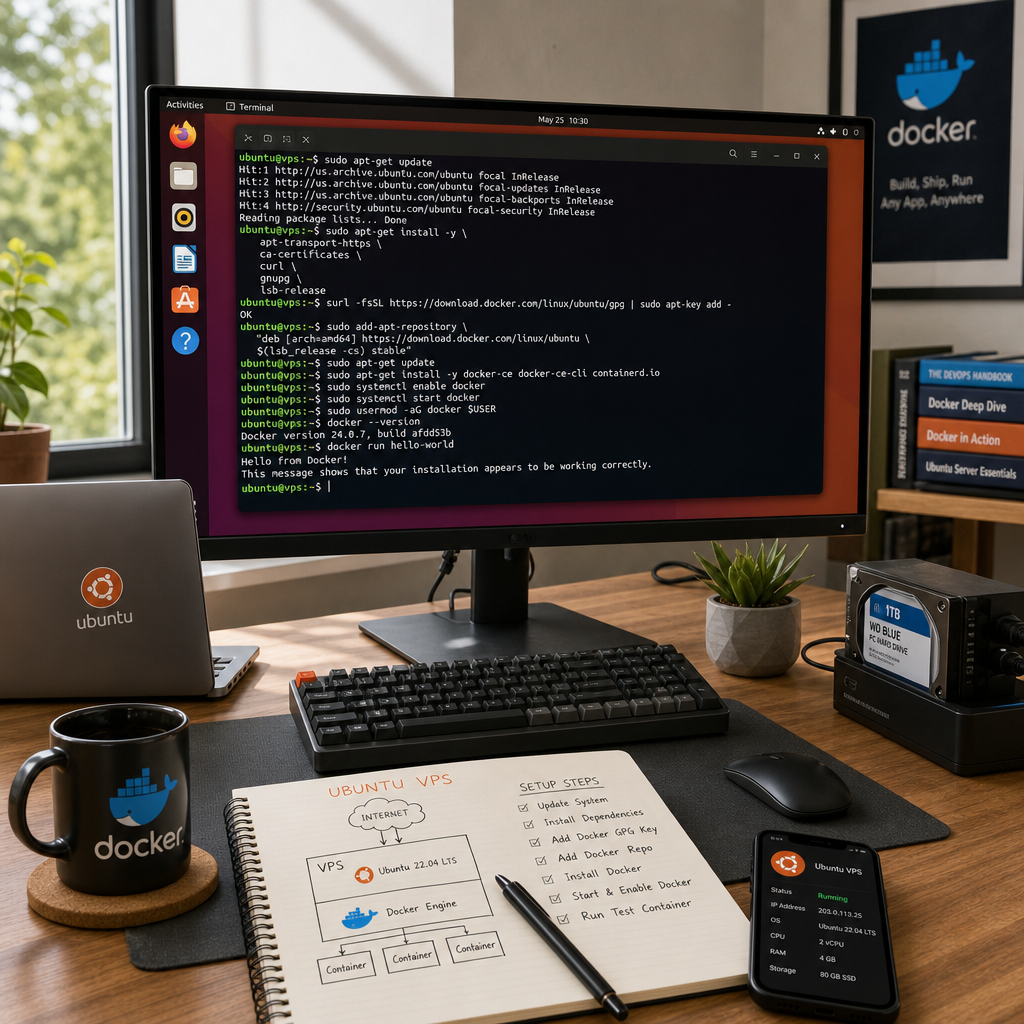
Step 1: Update Your Existing Packages
First, it’s crucial to update your package database to make sure you have the latest versions of the software. Run the following commands in your terminal:
        sudo apt update
        sudo apt upgrade -y
This will update and upgrade all your packages to the newest available versions.
Step 2: Install Necessary Packages
Before installing Docker, a few prerequisites are necessary. Run the following command to ensure you add additional packages, which will allow apt to use packages over HTTPS:
sudo apt install apt-transport-https ca-certificates curl software-properties-common
Step 3: Add Docker’s Official GPG Key
Docker requires a GPG key for verification. Add the official Docker GPG key using:
curl -fsSL https://download.docker.com/linux/ubuntu/gpg | sudo apt-key add -
Step 4: Add Docker’s APT Repository
Once the GPG key is added, add the Docker APT repository to your system:
sudo add-apt-repository "deb [arch=amd64] https://download.docker.com/linux/ubuntu $(lsb_release -cs) stable"
Step 5: Install Docker
With the repository added, let’s move on to installing Docker. First, update the package database:
sudo apt update
Now, install Docker:
sudo apt install docker-ce
Step 6: Verify Docker Installation
To check if Docker was successfully installed, run:
sudo systemctl status docker
If everything is correct, you should see Docker running.
Step 7: Run Docker Without Sudo (Optional)
If you want to run Docker commands without typing sudo, add your user to the Docker group:
sudo usermod -aG docker ${USER}
To apply the new group membership, log out and back in. Verify user access by running:
docker run hello-world
Common Docker Commands To Get You Started
Pull and Run Docker Containers
- docker pull [image_name] – Download the specified Docker image.
- docker run [image_name] – Run a Docker container from the specified image.
Manage Containers
- docker ps – List running Docker containers.
- docker stop [container_id] – Stop the specified Docker container.
Troubleshooting Common Docker Issues
If you encounter issues, here are a few troubleshooting tips:
- Check Docker Service: Ensure Docker service is running using
sudo systemctl status docker. - Check Disk Space: Clear old images and containers to free up space using
docker prune. - Inspect Logs: Check container logs using
docker logs [container_id].
Conclusion
Setting up Docker on an Ubuntu VPS is a straightforward process when you know the steps to follow. With Docker, you can deploy your applications in a consistent and isolated environment, enhancing stability and reliability. Now that you have set up Docker, you can start experimenting with containers, bringing your applications to life on the cloud hosting!
If you found this guide helpful, feel free to share it with others. Happy Dockering!